Shortcuts and examples
Open Help at the bottom of the tool strip, or press F1, then choose Open shortcut examples. This opens one editable ReShiki file in a separate window. It contains nine sections of labeled structures made with the same operations as the keyboard shortcuts.
Download the shortcut examples (.rsk). This is a single document, not a template collection. Open it with Open, or double-click the downloaded file. The gallery uses the normal unbounded canvas, without print pages or a page-navigation panel.
- Scroll vertically or sideways to pan. Cmd/Ctrl+scroll zooms at the pointer; +/− and Fit also work.
- Double-click a structure to select its molecule. Its caption stays separate.
- Cmd/Ctrl+C, switch to your drawing, then Cmd/Ctrl+V.
- Edit the pasted atoms and bonds normally. Save as keeps your own copy of the reference.
The sections cover common groups; elements, variables and charges; atom growth; ring attachment; bond styles and double-line placement; ring fusion; ligands and typed labels; drawing tools; and selection transforms. The structures are editable molecular objects, not embedded pictures. Group and template definitions are the current implementation and may be extended or revised in future releases.
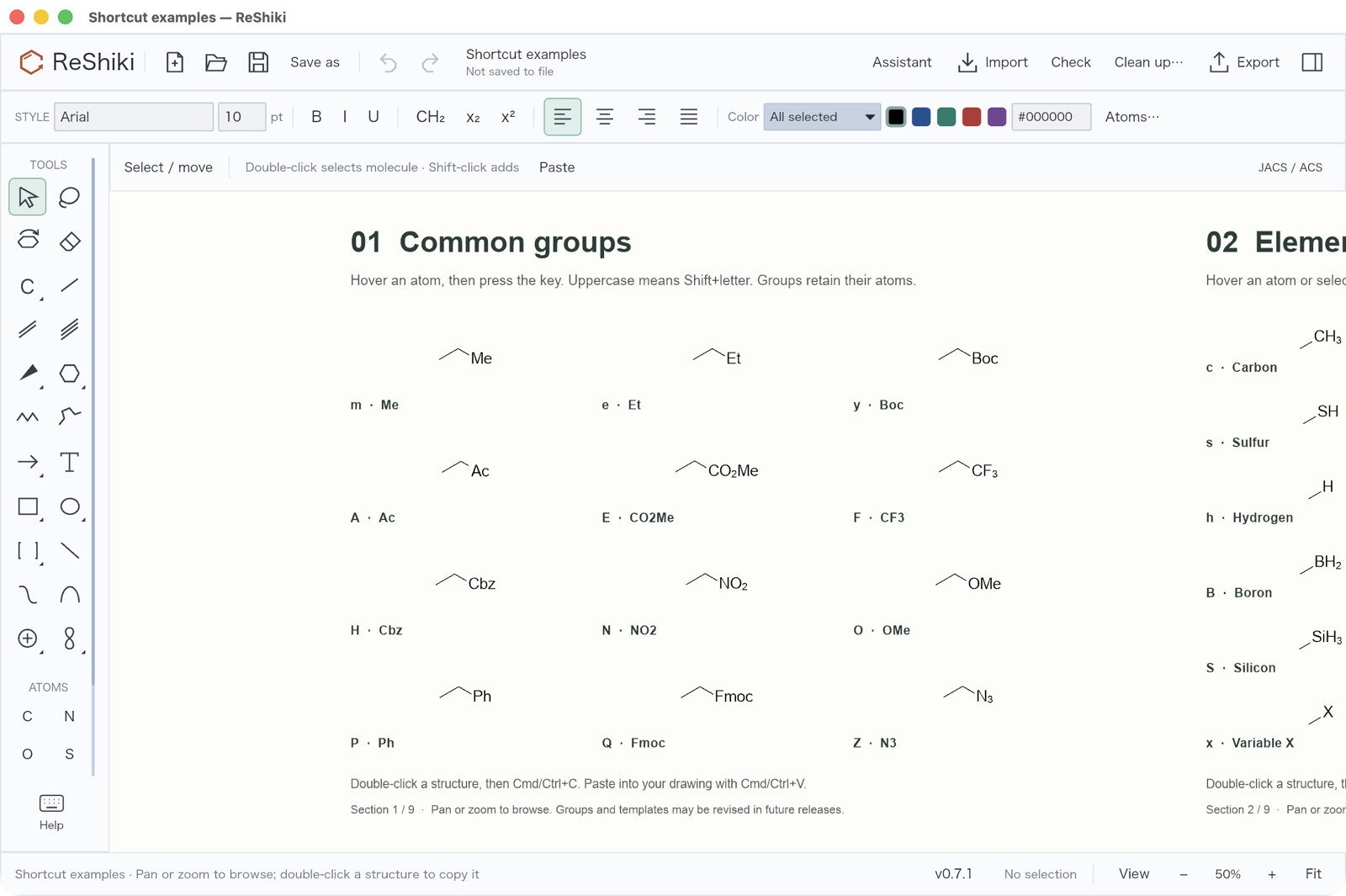
View all nine example sections and the drawing gestures.
The canvas fills the drawing area. Rulers reserve only their top and left gutters when enabled; the crosshair is an overlay. View → Page setup… is optional and is intended for printing and multipage PDF export.
How to read the keys
Section titled “How to read the keys”Lowercase and uppercase are different: m inserts Me at an atom; M means Shift+m and inserts MgBr. Keys depend on what is under the pointer. A single selected atom, or a selected bond’s two endpoints, can also provide the target. A hovered target takes precedence. Clear the selection and move to empty canvas before choosing a tool.
Text fields keep ordinary typing. Cmd means Command on macOS; Ctrl is the corresponding modifier on Windows and Linux. Alt is Option on macOS. Uppercase letters in modified shortcuts, such as Cmd/Ctrl+C, do not imply Shift unless it is written explicitly.
Two quick ring gestures
Section titled “Two quick ring gestures”- Choose Benzene in Rings (or press j over empty canvas). A normal click places alternating bonds. Hold Cmd on Mac or Ctrl on Windows/Linux while clicking or dragging to place the circle form. This modifier also works with regular rings and cyclopentadiene; it leaves chairs and Haworth projections unchanged.
- With Select, click inside an existing aromatic ring (or select all its atoms), move the pointer off its atoms and bonds, then press lowercase a to toggle circle / alternating bonds. Over an atom or bond, a attaches a ring even if the previous ring was automatically selected. The modifier shortcut Cmd/Ctrl+Alt+K remains available. The display change preserves molecular identity.
Add an element with a bond
Section titled “Add an element with a bond”Choose an element in Atoms, then drag from an existing atom to add it with a single bond. A click still replaces the existing atom. Dragging to another existing atom connects the two without relabeling either; an existing bond keeps its order. Normal bond length and angle constraints apply. Hold Option/Alt while dragging for free placement. Each committed edit is one Undo step.
At an atom
Section titled “At an atom”| Key | Result |
|---|---|
| c / n / o / s / p / f / h | C / N / O / S / P / F / H |
| b / C / B / i / L / S | Br / Cl / B / I / Li / Si |
| l / w / q | Additional aliases for Cl / N / O |
| d | Deuterium |
| + / − | Increase / decrease formal charge |
| r / x | Variable R / X label |
| m / e / y / P | Me / Et / Boc / Ph |
| A / E / F / H | Ac / CO₂Me / CF₃ / Cbz |
| N / O / Q | NO₂ / OMe / Fmoc |
| M / Z | MgBr / N₃ |
| j / J | Add Cp / arene with a multi-center attachment |
| 0 / 1 | Add branch / extend chain |
| 2 | Add carbonyl: a terminal acetyl group or an internal ketone |
| 4 / 5 | Grow through a wedge / hashed wedge |
| 8 / 9 | Add =CH₂ / dimethyl |
| z / K / k | Alkyne / tert-butyl / sulfonyl |
| 3 or a | Attach phenyl |
| 6 / 7 / v / u | Attach a 6 / 5 / 3 / 4 member ring |
| Enter or = | Edit atom label |
| g / ? | Select target / open its properties |
Defined groups keep their underlying atoms and bonds, so molecular properties include their composition. Variable R/X labels do not define a complete molecular formula. j and J retain the metal as the target for repeated ligand insertion; chemical charges are retained. The initial ligand uses a 60° perspective tilt with tapered front edges and the metal contact behind the ring. Its X/Y/Z coordinates are retained, so the 3D Tilt tool can rotate it further and update the thick/tapered perspective edges. Crossing clearance is recalculated from depth as you drag or tilt the ligand; the contact can pass in front of the far ring edge and ellipse. Cp carries −1 in the chemical data; arene is neutral. Cp’s minus sign is hidden by default in the drawing. Charge display can be changed in Atoms → Show charge without changing that data. Native documents retain the 3D model. Tested Cp/arene ligands also copy as editable CDX, including aromatic ellipses, perspective edges, hidden ligand charges and multi-center targets. Other unsupported appearances are converted only in the external copy, or use a reported picture fallback; see the compatibility table.
With multiple atoms selected, Enter opens Contract selection so you can name the fragment.
At a bond
Section titled “At a bond”| Key | Result |
|---|---|
| 1 / 2 / 3 | Single / double / triple |
| 2 again on a double bond | Cycle second-line placement |
| l / c / r | Place the double line left / centered / right |
| b / B | Bold / bold double |
| w / h or W | Wedge / hashed wedge |
| d / D / H / y | Dashed / partial double / hashed / wavy |
| f | Bring the bond forward at a crossing |
| v / 4 / 5 / 6 / 7 / 8 | Fuse a 3 / 4 / 5 / 6 / 7 / 8 member ring |
| a / z | Fuse benzene / diene |
| 9 / 0 | Fuse the two chair orientations |
| g / ? | Select target / open its properties |
Acyclic triple-bond edits straighten the adjacent branches. Bond appearance and placement edits keep chemical assignments when the chosen style permits it. Each edit is one Undo step.
On empty canvas: choose a tool
Section titled “On empty canvas: choose a tool”| Key | Tool or action |
|---|---|
| Space or v / l | Select / lasso |
| 1 or x or b | Single bond |
| 2 / 3 / 4 | Double / triple / quadruple bond |
| X | Straight chain |
| r | Ring tool, retaining its last size |
| R | Toggle saturated/aromatic ring drawing, retaining member count |
| j / J | Benzene / cyclopentadiene |
| a or e / t / T | Reaction arrow / text / brackets |
| E / G | Circled plus / p orbital |
| Element key | Select its atom tool when there is no contextual edit |
| Escape | Cancel the current operation / return to selection |
R can also convert a selected complete 3–8 member ring. This changes its bonds; it is different from changing an aromatic ring’s circle representation. Benzene starts with alternating bonds.
Files, clipboard and help
Section titled “Files, clipboard and help”| Keys | Action |
|---|---|
| F1 | Help and editable examples |
| Cmd/Ctrl+N / O / S | New / open / save |
| Cmd/Ctrl+Shift+S | Save as |
| Cmd/Ctrl+P | |
| Cmd/Ctrl+I | Import |
| Cmd/Ctrl+Shift+E | Open Export |
| Cmd/Ctrl+C / X / V | Copy / cut / paste editable selection |
| Cmd/Ctrl+Shift+C | Copy as an image |
| Cmd/Ctrl+D | Copy CDXML text |
| Cmd/Ctrl+Alt+C / O | Copy SMILES / MOL text |
| Cmd/Ctrl+Alt+P | Paste |
| Cmd/Ctrl+Z / Shift+Z | Undo / redo; Windows also supports Ctrl+Y |
| Cmd/Ctrl+Enter | Finish editing a label or caption |
Selection and drawing constraints
Section titled “Selection and drawing constraints”| Keys or gesture | Action |
|---|---|
| Cmd/Ctrl+A / Shift+A | Select all / invert selection |
| Cmd/Ctrl+G / Shift+G | Group / ungroup |
| Cmd/Ctrl+Shift+D | Duplicate |
| Cmd/Ctrl+J | Join selected atoms or bonds |
| Cmd/Ctrl+Shift+K | Preview cleanup |
| Cmd/Ctrl+L / E | Toggle fixed bond length / fixed angles |
| Option/Alt-drag | Temporarily draw or move bonded endpoints freely |
| Cmd/Ctrl+Alt+K | Toggle a selected aromatic ring’s circle / alternating bonds; Windows also supports Alt+K |
| Cmd/Ctrl+[ / ] | Send crossing bonds behind / bring forward |
| Cmd/Ctrl+/ | Fit drawing |
| Cmd/Ctrl+; | Toggle rulers |
| Cmd/Ctrl+Alt+X | Toggle crosshair |
| Delete or Backspace | Delete selection |
| Arrow / Shift+arrow | Nudge 1 / 10 drawing units |
| Double-click an atom | Select its molecule |
| Shift-click | Add to or toggle the selection |
| Side handle / corner handle | Resize one axis / resize proportionally |
Arrange and transform a selection
Section titled “Arrange and transform a selection”| Keys | Action |
|---|---|
| Alt+Up / Down | Rotate −15° / +15° |
| Alt+Left / Right | Rotate −1° / +1° |
| Shift+Alt+Up / Down | 3D tilt around X by −12° / +12° |
| Shift+Alt+Left / Right | 3D tilt around Y by +12° / −12° |
| Cmd/Ctrl+Shift+V / H | Flip horizontally / vertically |
| Cmd/Ctrl+Shift+Alt+L / R | Align left / right edges |
| Cmd/Ctrl+Shift+Alt+T / B | Align top / bottom edges |
| Cmd/Ctrl+Shift+Alt+C | Align to the same vertical midpoint (same Y) |
| Cmd/Ctrl+Shift+Alt+M | Align to the same horizontal midpoint (same X) |
| Cmd/Ctrl+Shift+Alt+H / V | Distribute horizontally / vertically |
Tilt changes the drawing projection, not chemical stereochemistry. Aromatic circles and inner curves follow their owning atoms. Select a whole molecule or group to transform it together.