Save and share
Keep an editable original
Section titled “Keep an editable original”Save writes a .reshiki file with the complete drawing. Use Save as for a separate version. Reopen it with Open.
If ReShiki offers a recovery draft after an interrupted session, choose Restore latest to inspect it, then save it to a file.
Choose an export
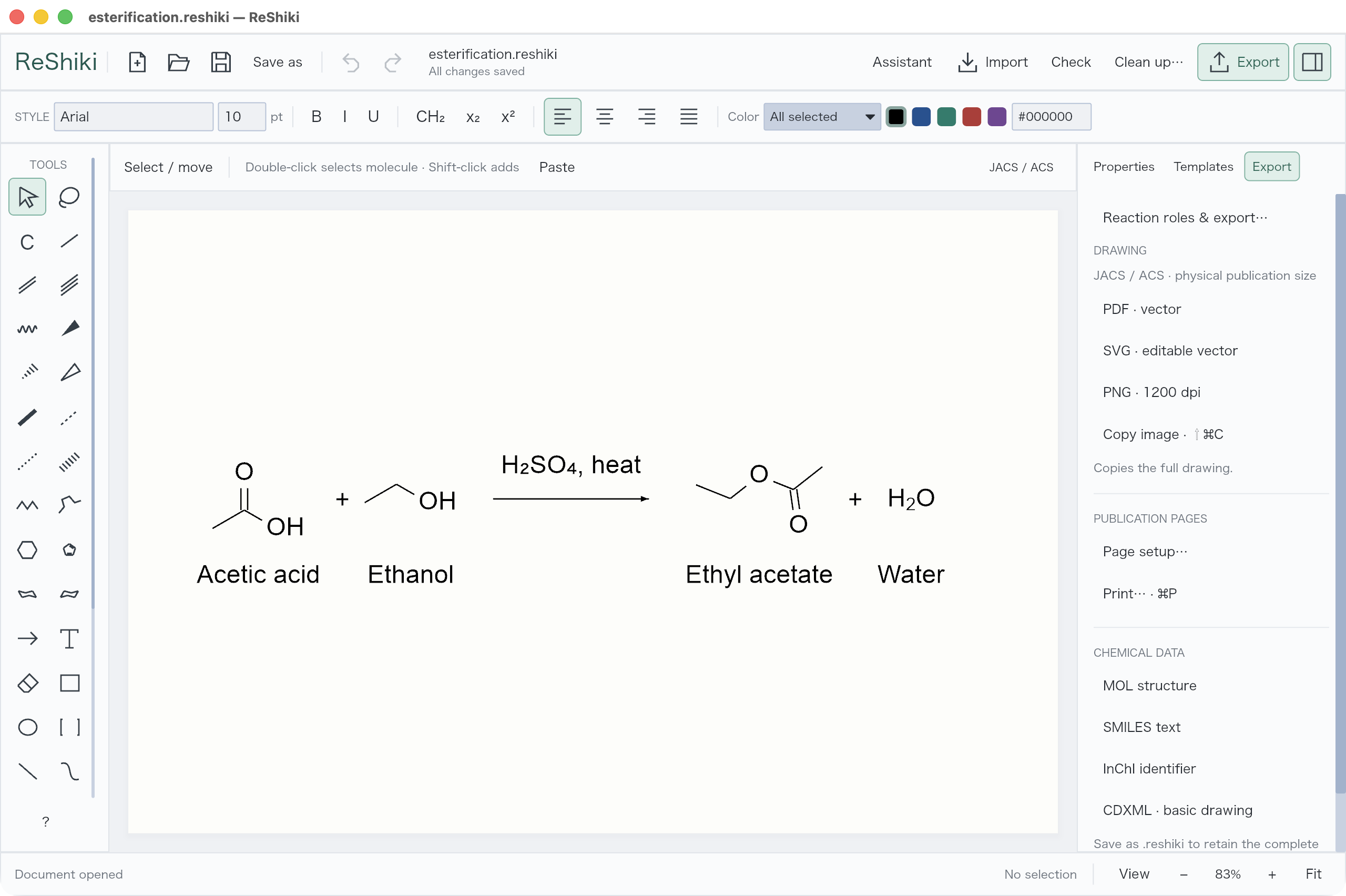
Section titled “Choose an export”Open Export and choose the format you need.
| You need | Use |
|---|---|
| A vector figure | SVG or PDF |
| A high-resolution image | PNG |
| Multiple publication pages | PDF · all pages |
| An editable chemical drawing | CDXML |
| Chemical structure data | MOL, SMILES, or InChI |
| Chemical reaction data | RXN or Reaction SMILES in Reaction roles |
Molecular and reaction data formats do not retain the full figure layout. Keep the .reshiki original.
Copy and paste
Section titled “Copy and paste”Select the objects, then ⌘/Ctrl+C and ⌘/Ctrl+V. Cut and Duplicate are also available above the canvas.
On Windows and macOS, Copy offers supported editable drawing data and an image to the receiving app. Ctrl+Shift+C / Shift+⌘+C copies an image explicitly; Ctrl+Shift+V / Shift+⌘+V pastes a picture. Editable exchange depends on the receiving app and the objects used.
In Windows desktop Office, normal Copy embeds a ReShiki drawing. Double-click it,
edit in ReShiki and use Ctrl+S to update the open Office document. Then save
the Office document. Copy Image pastes a static figure. See the
Windows workflow. For editing across Windows and Mac, retain
the .reshiki original: Mac Office does not support this Windows OLE workflow.
On macOS, use ⌘P or Export → Print…. The native print dialog also offers Save as PDF. Use Print selection for selected objects.
On Windows, use Ctrl+P or Export → Print…. Preview the page layout in ReShiki, then choose a printer, pages and copies in the Windows dialog. Choose Microsoft Print to PDF for a PDF file. See the Windows guide.
On Linux, export PDF to print with your usual PDF application.