Command-line reference
Experimental. In ReShiki 0.12.0 and later. Commands, options and output may change in any build.
reshiki --cli runs one command and exits. It converts, renders, lays out and
analyzes structures with the same operations as the MCP server,
without opening the app window. To connect an AI client instead, follow
Connect AI agents.
reshiki --cli <command> [options]--cli must be the first argument. Use the full path of the executable in
place of reshiki, such as /Applications/ReShiki.app/Contents/MacOS/reshiki
on macOS (where to find it).
reshiki --cli help lists the commands, and reshiki --cli help <command>
shows one command’s help. The generated reference
has every help text as the program prints it.
Commands
Section titled “Commands”| Command | What it does |
|---|---|
| convert | Convert a structure or drawing to another file format |
| render | Render a preview image of a structure or drawing |
| compose | Lay out a Proposal (JSON) and write it as a file |
| analyze | Print molecular properties as one JSON line |
| info | Print versions, limits and formats as one JSON line |
| tools | Print the agent tool catalog as one JSON line |
| schema | Print the Proposal JSON Schema |
| skill | Write an Agent Skill folder that teaches AI agents to use ReShiki |
| help | Show the help, or one command’s help, as text or JSON |
Rules for every command
Section titled “Rules for every command”- Each run takes one command. A command accepts only its own options; any
other option is a usage error, such as
render does not take --pages. - Each option is allowed once. A second
--togives--to given more than once. - An option that takes a value uses the next argument as the value, even one
that starts with
-. --ends the options. Every argument after it is the input, so a file whose name starts with-still works:reshiki --cli analyze -- -sample.mol.- A lone
-means standard input, or standard output after-o. - Usage errors are found before anything is read or written.
convert, render and analyze read exactly one input:
| Input | Meaning |
|---|---|
INPUT |
A file. Without --from, its extension picks the format (below). |
- |
Standard input. Needs --from. |
--smiles TEXT |
SMILES text. Cannot be combined with --from. |
The input extension picks the format, ignoring case:
| Extension | Format |
|---|---|
.rsk, .reshiki, .moruno |
reshiki, a ReShiki drawing |
.mol |
mol |
.rxn |
rxn |
.rsmi |
rsmi, reaction SMILES |
.cdxml |
cdxml |
.cdx |
cdx |
.inchi |
inchi |
| Any other, or none | smiles |
--from FORMAT sets the format instead: auto, smiles, mol, rxn,
rsmi, inchi, cdxml, cdx or reshiki. auto tells SMILES, MOL, RXN,
reaction SMILES, InChI and CDXML apart.
An input is at most 16,777,216 bytes (16 MiB), or 16,777,218 bytes for CDX. A ReShiki drawing with large embedded pictures can open in the app and still be too large here. Files are read with your own permissions: the folder grants of the MCP server do not apply.
Output
Section titled “Output”convert, render and compose write one file.
-o OUTPUTwrites the file to OUTPUT. Without--to, the extension of OUTPUT picks the format (below). Another extension, or none, is a usage error: pass--to.- Without
-o, or with-o -, the file goes to standard output and needs--to. PDF and PNG are never written to a terminal: redirect the output or use-o. - An existing OUTPUT is kept and the command fails, with
reshiki: error: OUTPUT exists; pass --force to replace.--forcereplaces it. - ReShiki writes a temporary file next to OUTPUT and then moves it into place, so OUTPUT is either unchanged or complete.
| Output extension | Format |
|---|---|
.svg |
svg |
.pdf |
pdf |
.png |
png |
.cdxml |
cdxml |
.mol |
mol |
.smi, .smiles |
smiles |
.inchi |
inchi |
render writes only png or svg. The command line cannot write .rsk
drawings, RXN, reaction SMILES, CDX or EMF. To save an .rsk file, use the
MCP server’s file_save or the app.
Options
Section titled “Options”| Option | Commands | Meaning |
|---|---|---|
--smiles TEXT |
convert, render, analyze | Read SMILES text instead of a file or standard input |
--from FORMAT |
convert, render, analyze | Set the input format |
--to FORMAT |
convert, render, compose | Set the output format: svg, pdf, png, cdxml, mol, smiles, inchi; png or svg for render |
-o OUTPUT |
convert, render, compose | Write to OUTPUT, or to standard output with - |
--pages |
convert, compose | Export every publication page as one PDF; PDF output only |
--width N |
render | The widest the PNG may be, in pixels: 1 to 8192, default 1600 |
--height N |
render | The tallest the PNG may be, in pixels: 1 to 8192, default 1000 |
--force |
convert, render, compose | Replace OUTPUT if it exists |
--receipt |
convert, compose | Print one receipt JSON line after writing OUTPUT; needs -o OUTPUT |
-o FOLDER |
skill | The existing folder that receives the skill folder |
--name NAME |
skill | The skill’s name and folder name; default reshiki |
--executable PATH |
skill | The absolute path of the executable the skill runs; default this executable |
--force |
skill | Replace the generated files of an existing skill folder |
--receipt |
skill | Print one receipt JSON line after writing the skill |
--json |
help | Print the command catalog as one JSON line |
A rendered PNG has at most 16,000,000 pixels. A --width or --height that
is not a whole number is a usage error. A number outside 1 to 8192 fails, as
in reshiki: error: max_width must be from 1 to 8192 pixels.
convert
Section titled “convert”reshiki --cli convert (INPUT | - | --smiles TEXT) [--from FORMAT] [--to FORMAT] [-o OUTPUT|-] [--pages] [--force] [--receipt]reshiki --cli help convert prints the full help.
Converts a structure or drawing and makes the file as the app’s Export does.
reshiki --cli convert --smiles 'CCO' -o ethanol.molreshiki --cli convert scheme.rsk -o figure.pdfreshiki --cli convert reaction.cdxml --to smilesFor PNG, the size is printed to stderr as a warning, such as
reshiki: warning: PNG: 737 × 352 pixels at 1200 dpi. A warning does not mean
the command failed.
With --receipt, stdout gets one line that describes the written file. This
receipt is from convert --smiles 'CCO' -o ethanol.mol --receipt, shown on
several lines:
{ "api": { "operation_api": 1, "stability": "experimental" }, "experimental": true, "receipt": { "byte_len": 308, "detail": null, "format": "mol" }}detail is the PNG size line for PNG output and null otherwise.
render
Section titled “render”reshiki --cli render (INPUT | - | --smiles TEXT) [--from FORMAT] [--to FORMAT] [-o OUTPUT|-] [--width N] [--height N] [--force]reshiki --cli help render prints the full help.
Renders the preview an agent looks at: PNG on white, scaled to fit
--width × --height, or SVG with a transparent surround. Use convert for
figures to publish.
reshiki --cli render scheme.rsk -o preview.pngreshiki --cli render --smiles 'c1ccccc1O' -o phenol.png --width 800 --height 600compose
Section titled “compose”reshiki --cli compose (PROPOSAL | -) [--to FORMAT] [-o OUTPUT|-] [--pages] [--force] [--receipt]reshiki --cli help compose prints the full help.
Lays out a Proposal in the default style, as ReShiki’s assistant composes its
drafts, then writes the drawing as convert does. PROPOSAL is a JSON file, or
- for standard input, of at most 16 MiB.
A Proposal is the JSON layout plan ReShiki’s assistant uses: molecules and reactions from SMILES, or one sketch diagram with explicit coordinates, plus the arrangement of the figure. To write one:
-
Start from the complete example esterification.json: acetic acid and ethanol give ethyl acetate and water, with H₂SO₄ and heat as conditions.
-
Check the rules in its JSON Schema.
reshiki --cli schema proposalprints it, and the generated reference shows it. Every object lists all of its properties: give[],""ornullfor the parts you do not use.replace_idsmust be empty, and every structure is SMILES; chemical names are not looked up. Labels andconditionsare drawn as typed, so write formulas with Unicode subscripts:H₂SO₄, notH2SO4. -
Look at the layout:
Terminal window reshiki --cli compose esterification.json -o preview.pngIt prints
reshiki: warning: PNG: 4773 × 1233 pixels at 1200 dpito stderr and writes this image: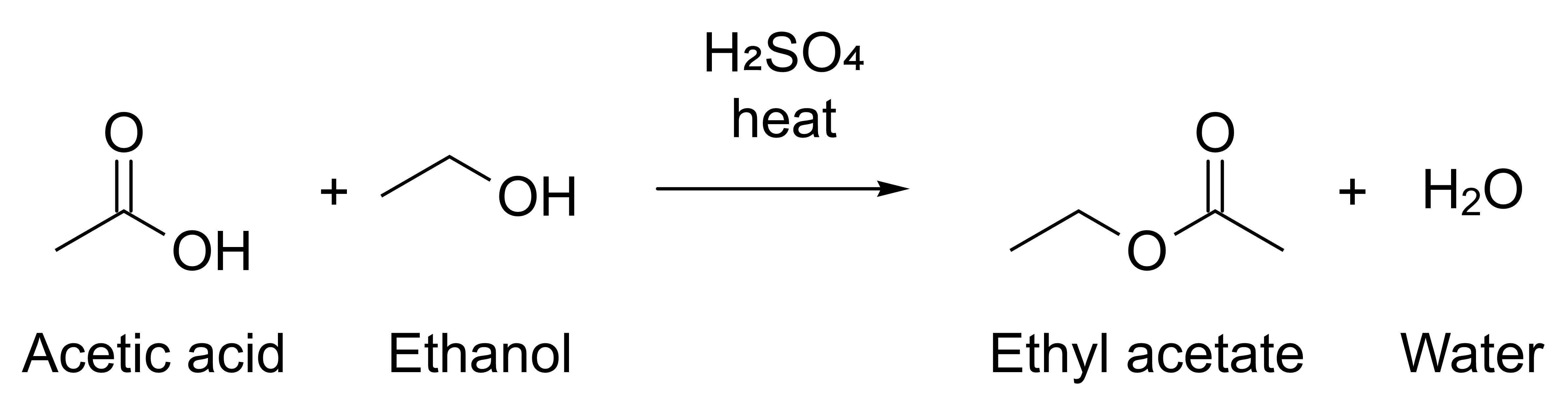
-
Change the Proposal and compose again until the scheme is right. The command never replaces a file without
--force, so add it or give each preview a new name:Terminal window reshiki --cli compose esterification.json -o preview.png --forceThen write the file you need:
Terminal window reshiki --cli compose esterification.json -o esterification.svg --receipt{"api": {"operation_api": 1,"stability": "experimental"},"experimental": true,"receipt": {"byte_len": 6594,"detail": null,"format": "svg"}}
analyze
Section titled “analyze”reshiki --cli analyze (INPUT | - | --smiles TEXT) [--from FORMAT]reshiki --cli help analyze prints the full help.
Prints the molecular properties of a structure or drawing as one JSON line.
The properties are under value.analysis, and value.analyzed_atoms lists the
IDs of the atoms analyzed. This is analyze --smiles 'c1ccccc1O', shown on
several lines:
{ "api": { "operation_api": 1, "stability": "experimental" }, "experimental": true, "validation": { "status": "valid" }, "value": { "analysis": { "acceptors": 1, "donors": 1, "exact_mass": 94.041864812, "formula": "C6H6O", "inchi": "InChI=1S/C6H6O/c7-6-4-2-1-3-5-6/h1-5,7H", "inchikey": "ISWSIDIOOBJBQZ-UHFFFAOYSA-N", "logp": 1.3922, "mass": 94.11299999999999, "rings": 1, "smiles": "Oc1ccccc1", "tpsa": 20.23, "unpaired_electrons": 0 }, "analyzed_atoms": ["1", "2", "3", "4", "5", "6", "7"] }, "versions": { "app": "0.12.0", "document": 26, "engine_protocol": 1, "operation_api": 1 }, "warnings": []}The result has the same fields as the MCP analyze tool’s
result, plus experimental and api.
reshiki --cli inforeshiki --cli help info prints the full help.
Prints ReShiki’s versions, the limits it enforces and the formats as one JSON
line. cli lists the formats the command line reads and writes. grants and
files describe the file tools of the MCP server; the command line uses
neither.
reshiki --version (or reshiki --cli --version) prints only the
application version, such as reshiki 0.12.0, and exits without opening a
window.
Output of reshiki --cli info, shown on several lines
{ "api": { "operation_api": 1, "stability": "experimental" }, "budgets": { "concurrency": 2, "export_png_pixels": 16000000, "history_depth": 20, "idempotency_receipts": 32, "idle_ttl_seconds": 3600, "max_cdx_base64": 22369624, "max_documents": 16, "max_idempotency_key_bytes": 128, "max_ids": 5000, "max_inspect_objects": 5000, "max_objects": 100000, "max_output_bytes": 16777216, "max_request_bytes": 25165824, "max_session_picture_bytes": 134217728, "max_session_weight": 2000000, "max_text_bytes": 16777216, "op_deadline_seconds": 120, "queue": 8, "render": { "default_height": 1000, "default_width": 1600, "max_pixels": 16000000, "max_side": 8192, "min_side": 1 } }, "cli": { "input_formats": ["auto", "smiles", "mol", "rxn", "rsmi", "inchi", "cdxml", "cdx", "reshiki"], "output_formats": ["svg", "pdf", "png", "cdxml", "mol", "smiles", "inchi"] }, "experimental": true, "files": { "read": [ "rsk", "reshiki", "moruno", "mol", "rxn", "rsmi", "cdxml", "cdx", "smi", "smiles", "inchi" ], "write": ["rsk", "mol", "cdxml", "smi", "smiles", "inchi", "svg", "pdf", "png"] }, "formats": { "export": ["svg", "pdf", "png", "cdxml", "mol", "smiles", "inchi"], "import": ["auto", "smiles", "mol", "rxn", "rsmi", "inchi", "cdxml", "cdx", "reshiki"] }, "grants": { "read": [], "write": [] }, "operation_api": 1, "stability": "experimental", "versions": { "app": "0.12.0", "document": 26, "engine_protocol": 1, "operation_api": 1 }}The budget table explains each limit.
reshiki --cli toolsreshiki --cli help tools prints the full help.
Prints one JSON line with the MCP server’s tool catalog: notice,
data_not_instructions, guide_url and tools, where each tool has its
name, title, description, inputSchema and annotations. It is the
same catalog tools/list returns, versioned by api.operation_api. The
tool reference shows it as tables.
schema
Section titled “schema”reshiki --cli schema proposalreshiki --cli help schema prints the full help.
Prints the Proposal JSON Schema that compose reads, the same schema the MCP
server publishes. It is one JSON line without experimental and api, so you
can save it as a schema file:
reshiki --cli schema proposal > proposal-schema.jsonreshiki --cli skill -o FOLDER [--name NAME] [--executable PATH] [--force] [--receipt]reshiki --cli help skill prints the full help.
Writes an Agent Skill folder, FOLDER/NAME, that teaches AI agents to use
ReShiki. Agent skill explains where to install it.
- FOLDER must exist. ReShiki never creates it. A missing
-o, or-o -, is a usage error:skill writes a folder; pass -o FOLDER. - NAME is 1 to 64 lowercase letters, digits and hyphens, with no leading,
trailing or double hyphen. It cannot contain
claudeoranthropic. The default isreshiki. - PATH must be absolute. Without
--executable, the skill runs the executable you started. - If
FOLDER/NAMEexists, the command fails and writes nothing.--forcereplaces the generated files and keeps every other file in the folder. A symbolic link in place of the skill folder or one of its subfolders is refused. - The command only formats text: nothing is sent over the network.
This receipt is from reshiki --cli skill -o skills --receipt, shown on
several lines:
{ "api": { "operation_api": 1, "stability": "experimental" }, "experimental": true, "skill": { "files": [ "SKILL.md", "references/cli.md", "references/mcp-tools.md", "references/limits-and-errors.md", "references/setup.md", "assets/proposal-schema.json", "assets/examples/esterification.json" ], "name": "reshiki", "path": "skills/reshiki" }}reshiki --cli help [--json] [COMMAND]Prints the overview, or one command’s help. --help and -h work in place of
help. With --json, it prints the same catalog as one JSON line:
commandslists each command’sname,summary,usage,operandandoptions. Each option has itsflag,value,defaultandhelp.setsnames the MCP tool argument it sets, such asrender.max_width, andequivalentnames an MCP argument the command line handles itself, such asfile_save.overwritefor--force.options_rule,output,exit_codesandenvironmentstate the rules on this page.
reshiki --cli without a command prints the overview to stderr and exits 2.
Output and messages
Section titled “Output and messages”Standard output carries only the result: the file, one JSON line, or one
receipt line with --receipt. With -o OUTPUT and no --receipt it stays
empty. Every JSON line has "experimental": true and an api object with
operation_api and stability, except the raw schema from schema proposal.
Messages go to standard error, one per line:
| Prefix | Meaning |
|---|---|
reshiki: warning: |
A warning. The command still succeeds. |
reshiki: error: |
The operation failed, or the input or output could not be read or written. Exit 1. |
reshiki: |
A usage error (exit 2), or standard output could not be written (reshiki: could not write output: …, exit 1). |
Exit status
Section titled “Exit status”| Exit | Meaning |
|---|---|
| 0 | Success |
| 1 | The operation failed, the input could not be read, the output could not be written (or exists, without --force), or standard output closed early |
| 2 | A usage error, including an invalid RESHIKI_AGENT_HEAP_MB. Nothing was read or written. |
| 75 | The memory ceiling was reached. Standard error has a RESHIKI_HEAP_LIMIT <budget> <used> <requested> line. |
Memory ceiling
Section titled “Memory ceiling”RESHIKI_AGENT_HEAP_MB sets the memory ceiling in MiB: 256 to 16384, with
a default of 2048. Another value exits 2 with
reshiki: RESHIKI_AGENT_HEAP_MB must be a whole number of MiB from 256 to 16384.
Raise it when a large input exits 75:
RESHIKI_AGENT_HEAP_MB=4096 reshiki --cli convert large.cdxml -o large.pdfIn PowerShell, set $env:RESHIKI_AGENT_HEAP_MB = 4096 first. The same
variable applies to the MCP server; set it in the client’s server settings
(Connect AI agents).
Windows
Section titled “Windows”Windows release builds have no console. Their output and error messages appear
only when you pipe or redirect them. In PowerShell, run the executable with &
and end the command with 2>&1 | Write-Output. Piping also makes PowerShell
wait for the command, and $LASTEXITCODE then holds its exit status:
& "$env:LOCALAPPDATA\Programs\ReShiki\reshiki.exe" --cli info 2>&1 | Write-Output$LASTEXITCODETo keep the output in files, redirect it instead:
& "$env:LOCALAPPDATA\Programs\ReShiki\reshiki.exe" --cli convert --smiles CCO -o ethanol.mol 2> errors.txtWindows has more about the release build’s console.