Select and refine
Select what to change
Section titled “Select what to change”| Task | Gesture |
|---|---|
| Select a molecule | Double-click an atom |
| Select a bond | Click its middle with Select |
| Select a region | V, then drag a box; L for lasso |
| Add / toggle an object | Shift-click |
| Remove a region | Alt-drag around it |
| Select everything | ⌘/Ctrl+A |
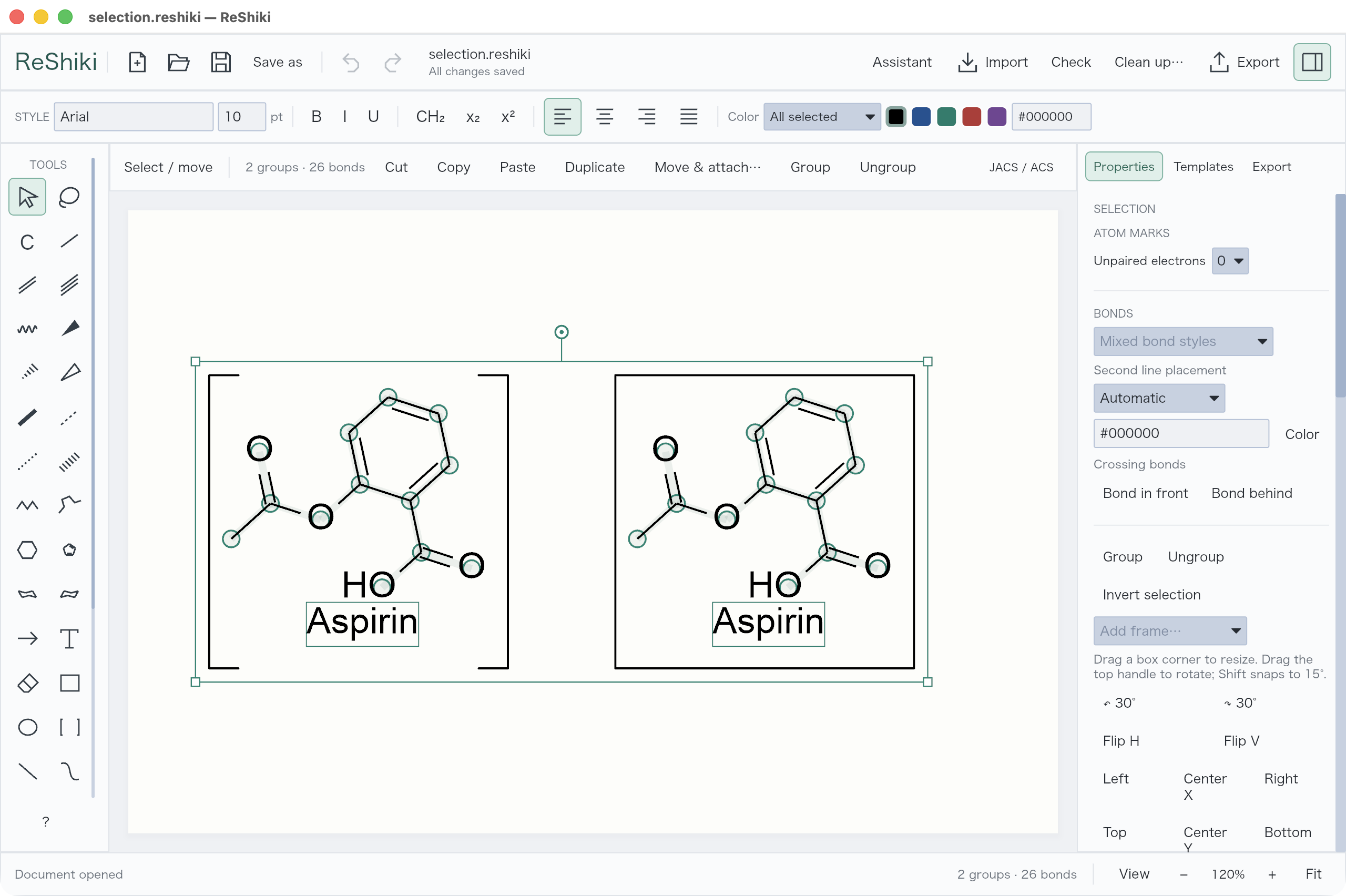
Drag a selected object to move it. Drag a corner handle to resize; use the top handle to rotate. Shift snaps rotation to 15°.
Keep related objects together
Section titled “Keep related objects together”Select a molecule and its caption, then Group (⌘/Ctrl+G). Use Shift+⌘/Ctrl+G to ungroup.
Properties offers alignment, distribution, Flip H/V, and Add frame. Duplicate makes another editable copy.
Change color
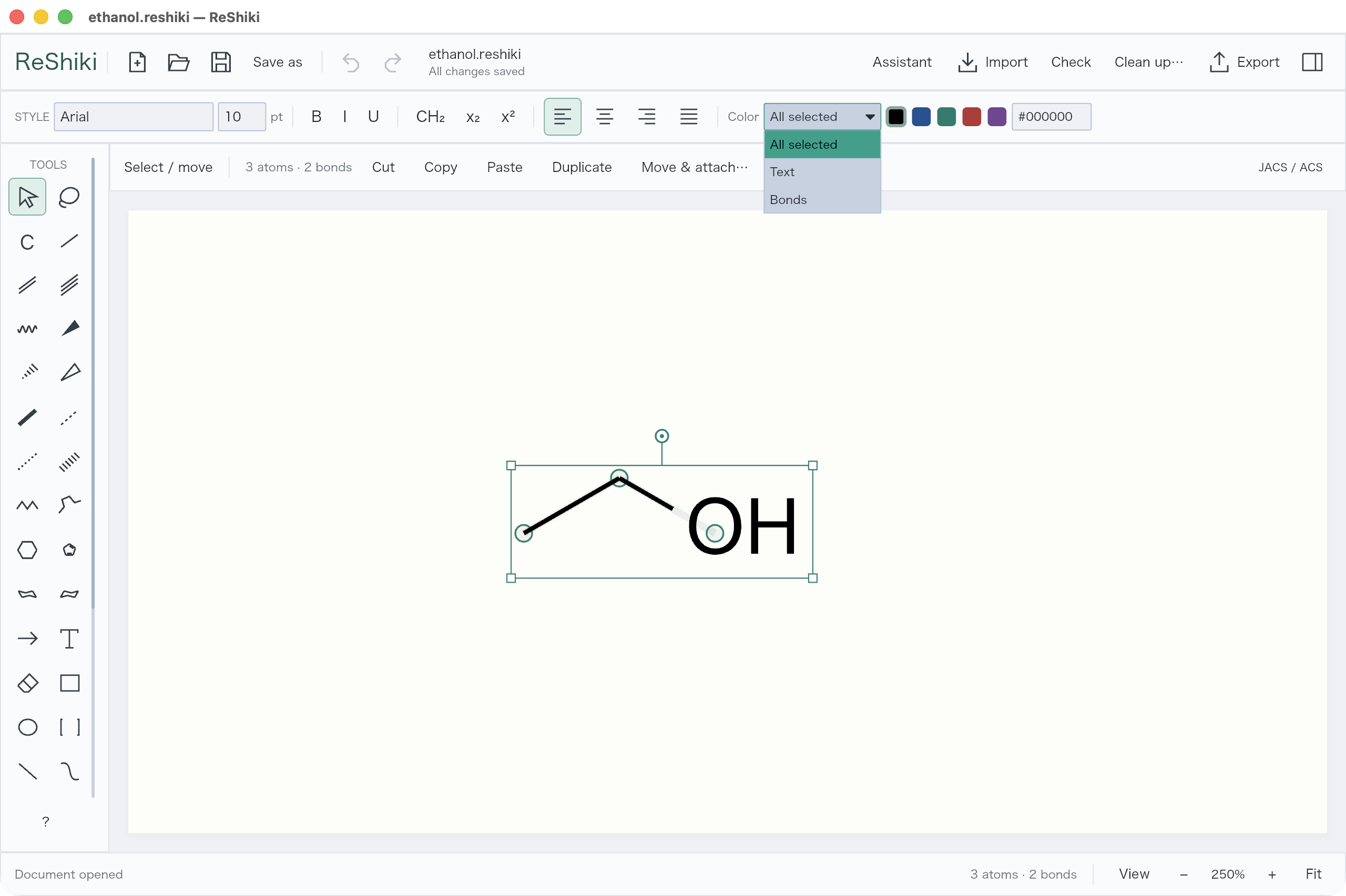
Section titled “Change color”Select the objects, choose All selected, Text, or Bonds in the Style toolbar, then choose a swatch. Enter a hex color and press Return for a custom color.
Clean up a selection
Section titled “Clean up a selection”- Select a molecule or the atoms you want to adjust.
- Click Clean up….
- Compare with Show original, then Apply or Cancel.
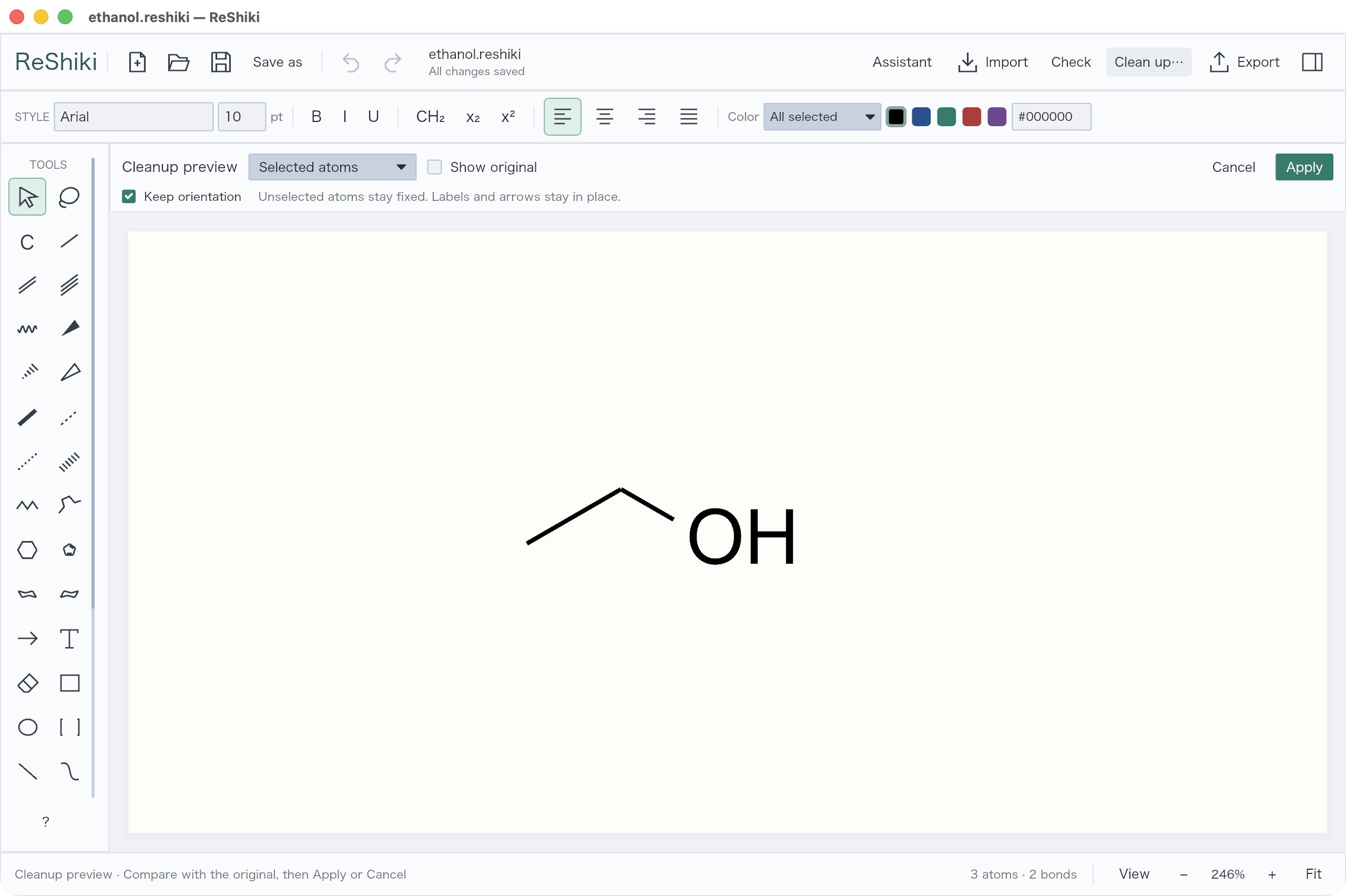
Selected atoms keeps the rest fixed. Selected molecules includes each complete molecule touched by the selection. Other molecules stay in place. Keep orientation preserves the drawing’s direction.
Apply is one Undo step. Cleanup adjusts molecular geometry; it does not arrange an entire reaction scheme.