Build with templates
Find a structure
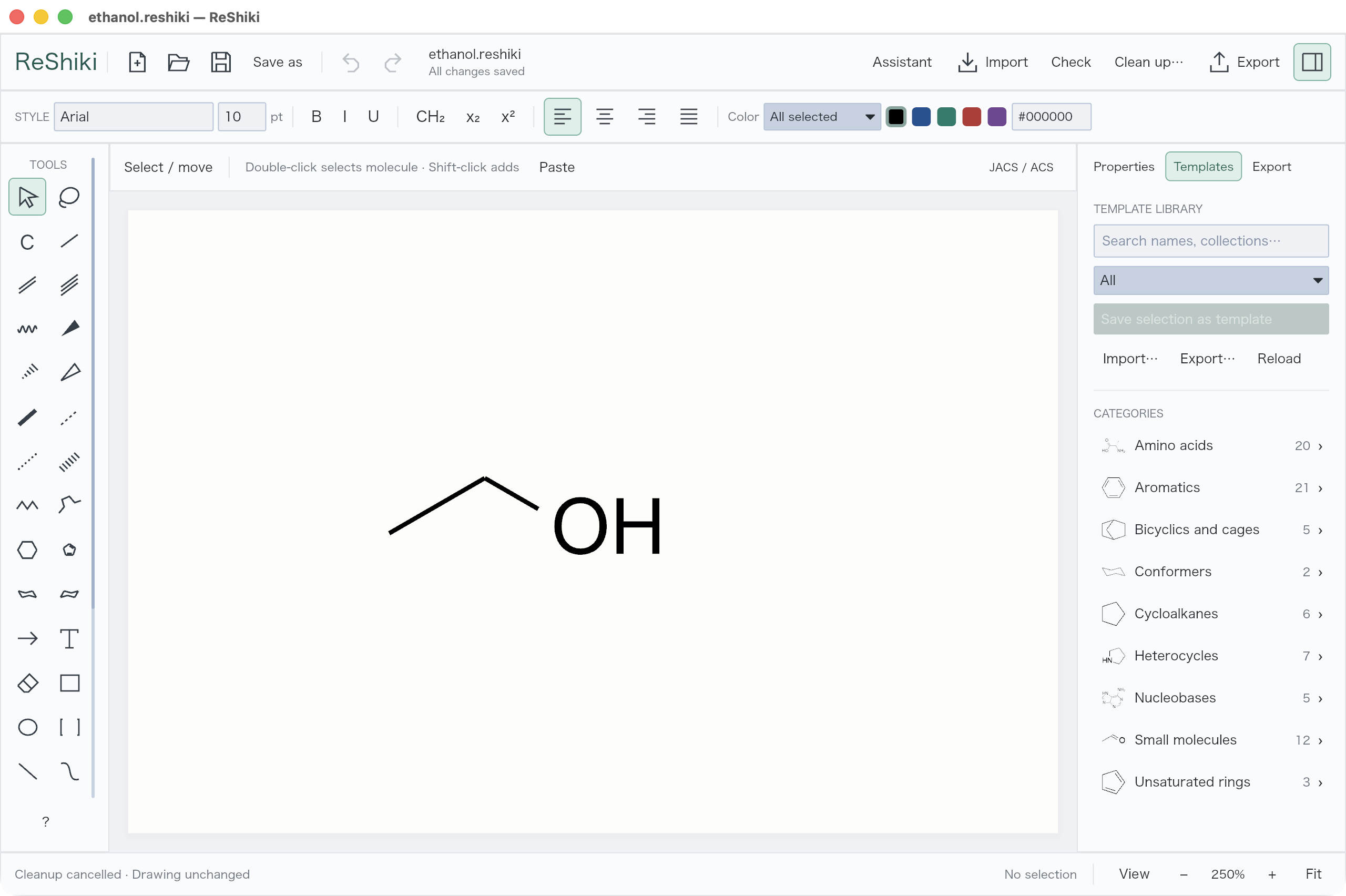
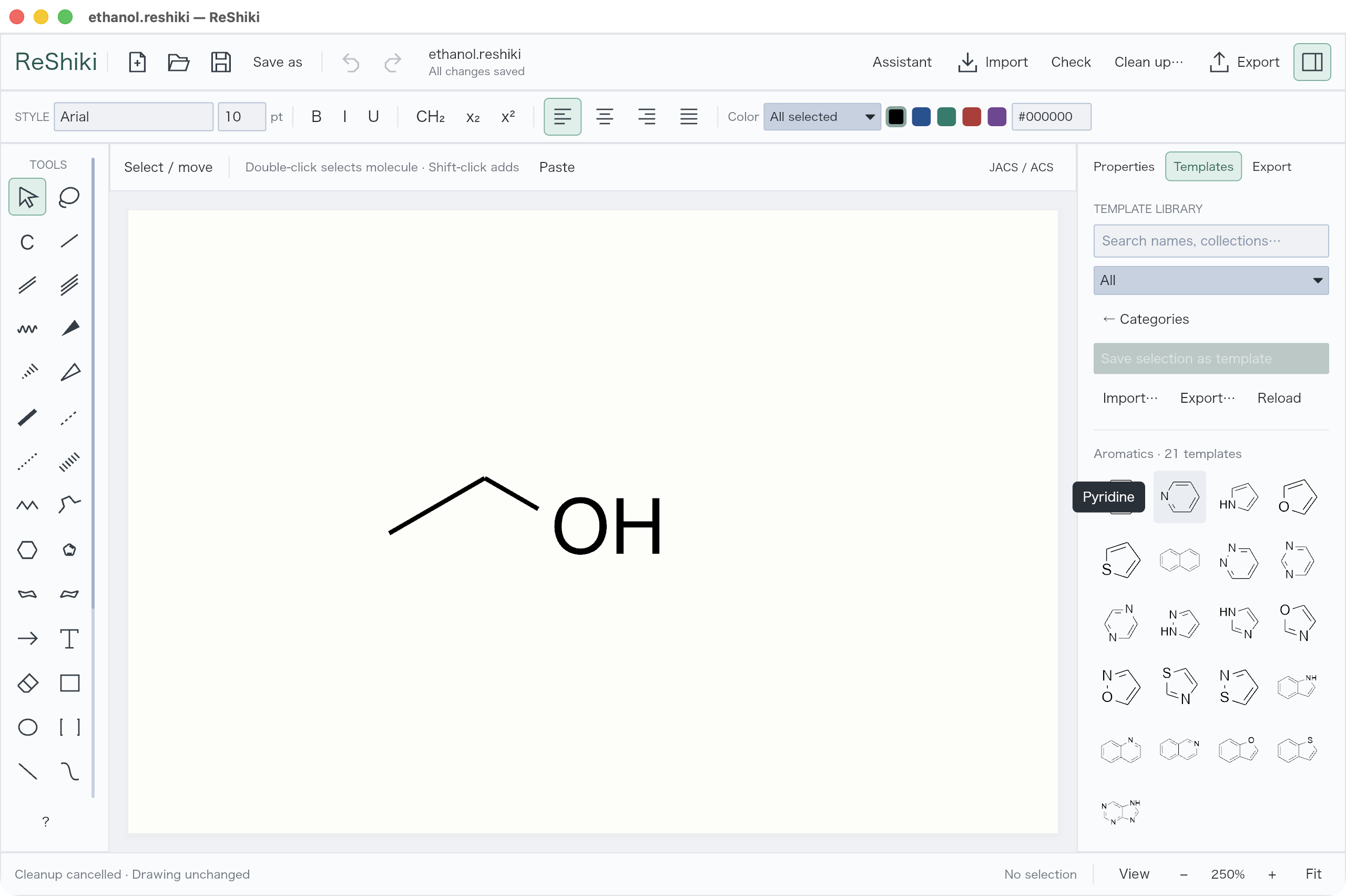
Section titled “Find a structure”Open Templates. Pick a category or search by name, then choose a structure. Hover a thumbnail to see its name.
Choose how it connects
Section titled “Choose how it connects”Click the exact atom or bond in the large template preview, then its destination on the canvas.
| Mode | Result |
|---|---|
| Connect with a bond | Joins two atoms with a new single bond |
| Share an atom | Merges the chosen atoms |
| Fuse along a bond | Shares an edge and both endpoints |
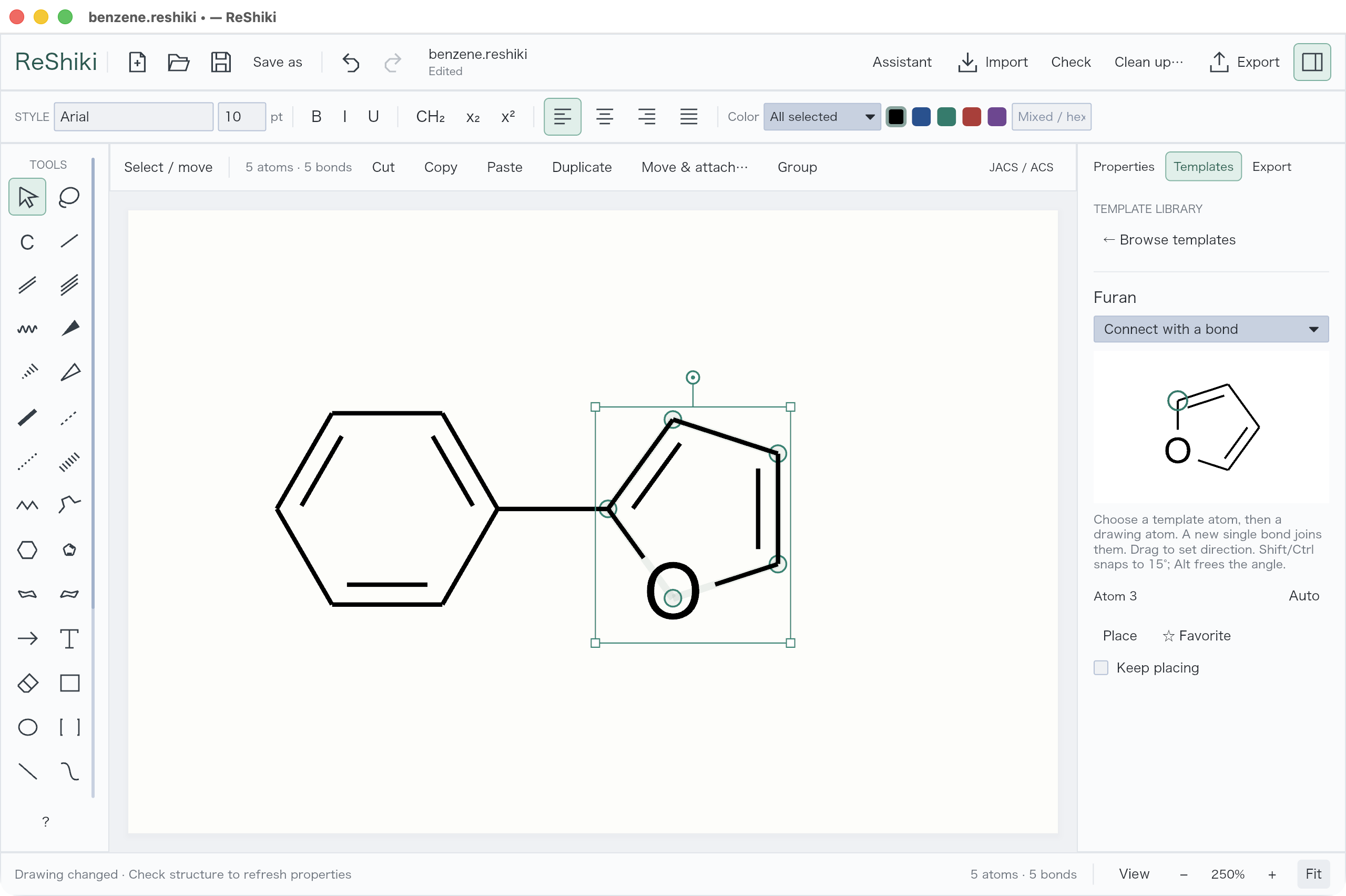
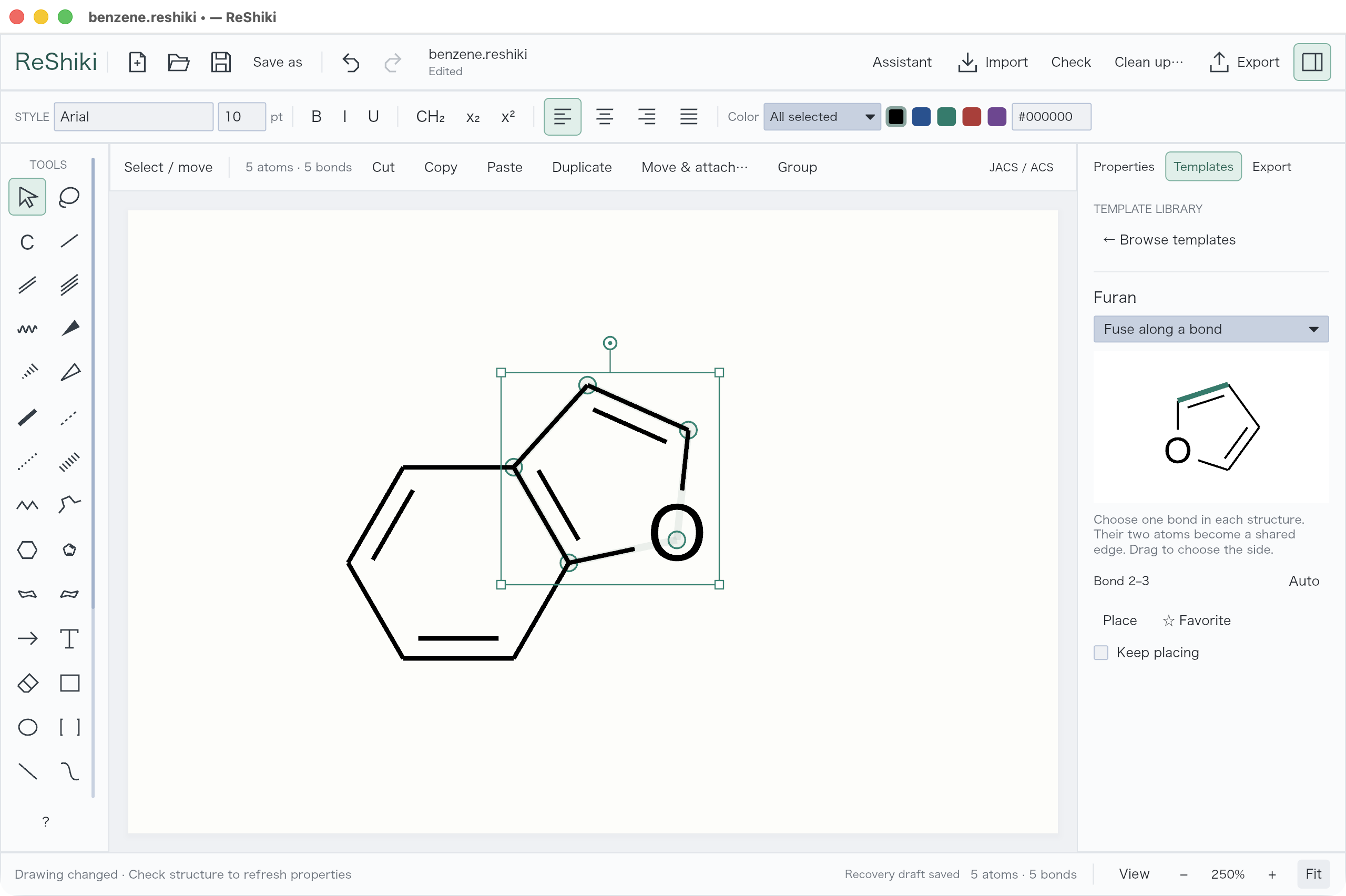
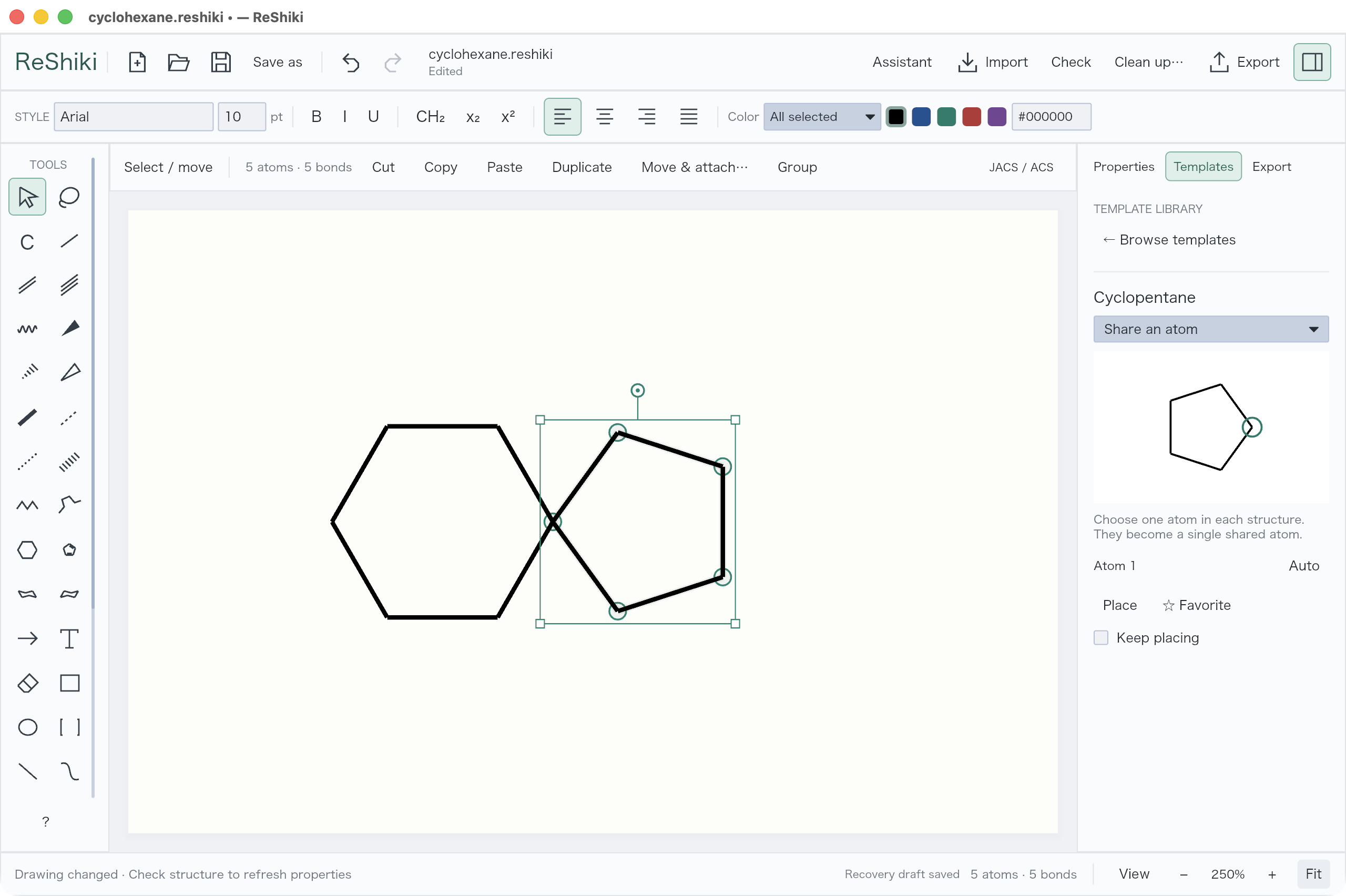
Drag from the destination to choose a direction. Shift/Ctrl snaps the angle; Alt/Option frees it. Click empty space to place a separate structure.
Keep placing inserts more copies. Escape ends placement. Use Browse templates, your mouse’s Back button, or Alt+Left to return to the library.
Keep a fragment for later
Section titled “Keep a fragment for later”- Select the structure, including any captions or arrows you want.
- Choose Save selection as template. Give it a name and collection, then Save.
- In its preview, choose an attachment point and Remember anchor.
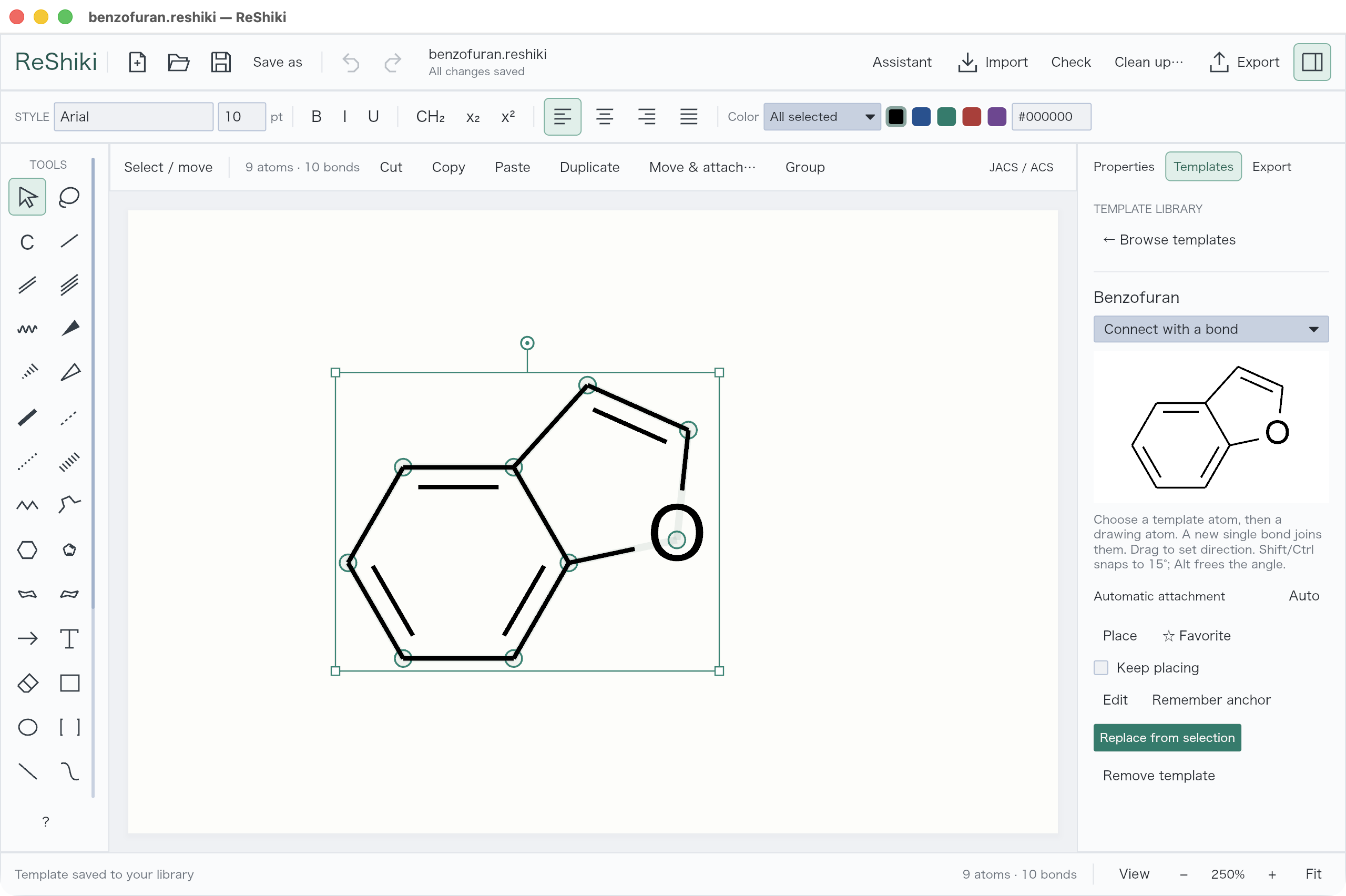
Use Favorite for quick access. Custom templates also have Edit, Replace from selection, and Remove template. Undo library change restores the last library edit.
Export and Import in Templates share a .reshiki-templates collection.
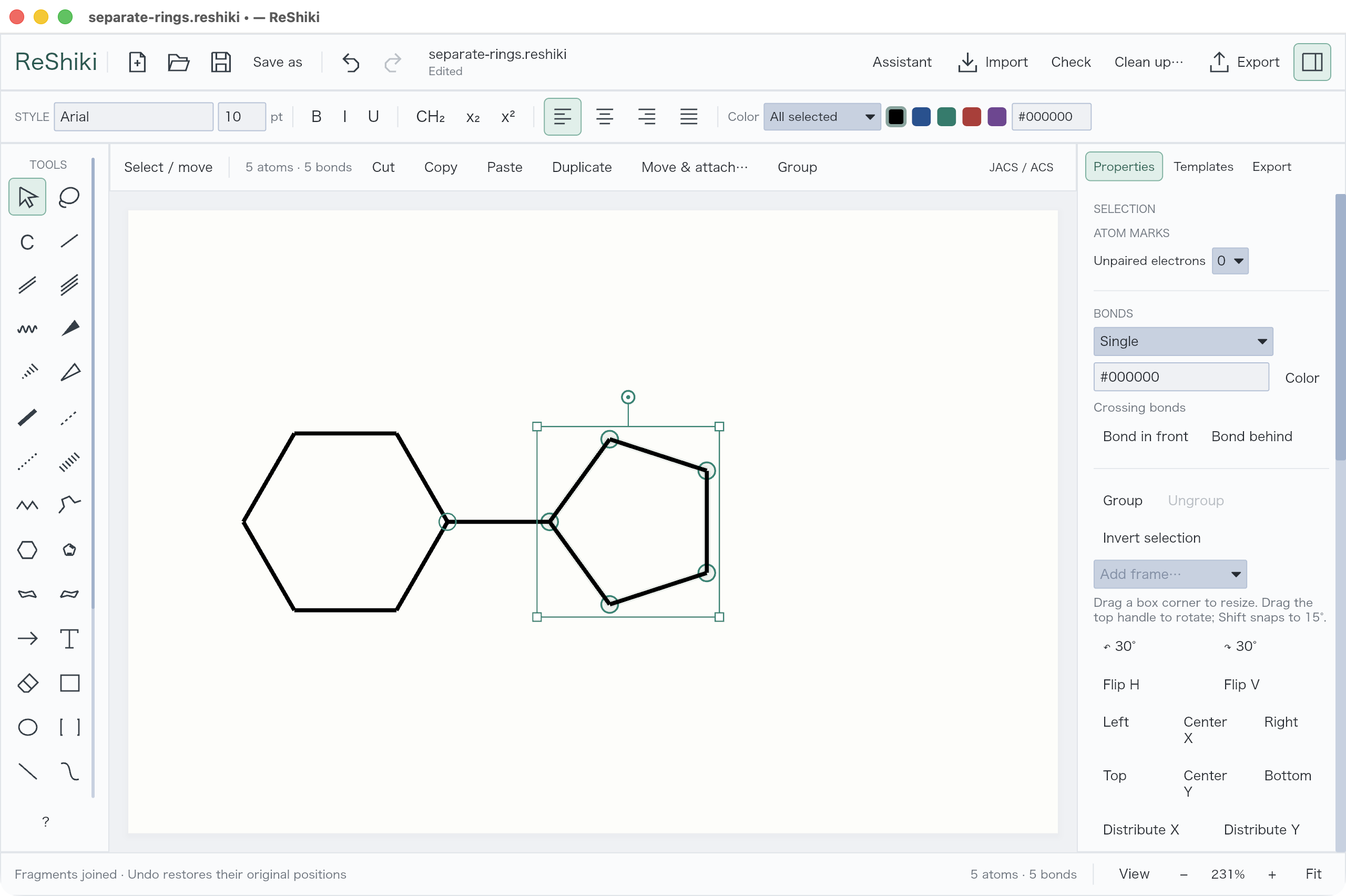
Already have the fragment on the canvas? Select it and choose Move & attach… above the canvas.