Connect AI agents (experimental)
Which one do I need?
- Draw with the assistant: ReShiki asks Codex for drawings inside the app.
- Connect AI agents: an agent you already use (Claude Code, Claude Desktop, Codex) drives ReShiki without opening it.
ReShiki can run without its window as an MCP server: a background process that AI clients such as Claude Code, Claude Desktop and Codex start and give tools to. The same operations are available from a terminal with reshiki --cli.
What an agent can do
Section titled “What an agent can do”- Import SMILES, MOL, RXN, reaction SMILES, InChI, CDXML or CDX, or open a file from a folder you granted.
- Report the formula, mass, logP, TPSA, InChI, InChIKey and other properties.
- Render a preview it can look at.
- Lay out molecules and reaction schemes from SMILES, as ReShiki’s assistant does, then insert or delete structures and undo or redo.
- Export SVG, PDF, PNG, CDXML, MOL, SMILES or InChI, or save
.rskdrawings and those formats into a folder you granted.
Limits in this version:
- The agent composes at the SMILES level: molecules, reactions and whole schemes. It does not edit individual atoms, bonds or styles.
- The app can import chemical names, but the agent API cannot yet; the agent must supply SMILES.
- It cannot see or change drawings open in the ReShiki app. Its drawings live in the server until it saves them; open a saved
.rskfile in ReShiki to keep editing. - It reads and writes files only in folders you grant.
1. Find the ReShiki executable
Section titled “1. Find the ReShiki executable”Clients start ReShiki by the absolute path of its executable:
| System | Executable |
|---|---|
| macOS | /Applications/ReShiki.app/Contents/MacOS/reshiki |
| Windows | %LOCALAPPDATA%\Programs\ReShiki\reshiki.exe, such as C:\Users\you\AppData\Local\Programs\ReShiki\reshiki.exe |
| Linux | reshiki in the folder you extracted, such as /home/you/Apps/ReShiki/reshiki |
Check it in a terminal. It prints one line of JSON that includes "experimental": true:
/Applications/ReShiki.app/Contents/MacOS/reshiki --cli infoOn Windows, pipe the output, because the release build has no console of its own:
& "$env:LOCALAPPDATA\Programs\ReShiki\reshiki.exe" --cli info | Write-Output2. Choose folders to grant
Section titled “2. Choose folders to grant”The server cannot read or write any file until you grant a folder. Create a dedicated folder for agent work, such as /Users/you/ReShiki-Agent, rather than granting your home folder or Documents. ReShiki refuses to grant the home folder, its parent folders, its own data folder and the folder it is installed in.
--allow-write <folder>lets the agent save files into the folder.--allow-read <folder>lets it open files from the folder. A write grant does not include reading, so add both to let it reopen what it saved.
You can also grant folders for every client in agent-access.json in ReShiki’s data folder (~/Library/Application Support/dev.reshiki.ReShiki/ on macOS, %LOCALAPPDATA%\reshiki\ReShiki\data\ on Windows, ~/.local/share/reshiki/ on Linux):
{ "version": 1, "read": ["/Users/you/ReShiki-Agent"], "write": ["/Users/you/ReShiki-Agent"] }Folders are read when the server starts. A folder that does not exist or cannot be granted stops the server with exit code 2, and the client reports that it failed to start. Restart the client after changing grants.
3. Connect your client
Section titled “3. Connect your client”Use absolute paths everywhere. ~, $HOME and %LOCALAPPDATA% are not expanded in JSON or TOML, and a relative folder would depend on where the client starts the server. Replace the example paths with your own.
Claude Code
Section titled “Claude Code”claude mcp add --transport stdio --scope user reshiki -- /Applications/ReShiki.app/Contents/MacOS/reshiki --mcp --allow-write /Users/you/ReShiki-AgentOn Windows:
claude mcp add --transport stdio --scope user reshiki -- "C:\Users\you\AppData\Local\Programs\ReShiki\reshiki.exe" --mcp --allow-write "C:\Users\you\ReShiki-Agent"- Everything after
--is ReShiki’s command line. The--separator is required, so Claude Code does not read--mcpas its own option. - Prefer user scope. Project-scoped servers from a repository’s
.mcp.jsonload without asking inclaude -pand SDK sessions, so a project you open could start ReShiki with folders you did not choose. CLAUDE_PROJECT_DIR, which Claude Code sets for the servers it starts, grants nothing. Grant folders explicitly.- Claude Code warns when one tool result exceeds 10,000 tokens and limits results to 25,000 tokens by default. Set
MAX_MCP_OUTPUT_TOKENSto raise the limit, or ask the agent for a smaller render, part of a drawing, orfile_saveinstead of an inline export.
Run /mcp in a Claude Code session to see the server and its tools. See Claude Code’s MCP documentation.
Claude Desktop
Section titled “Claude Desktop”In Claude Desktop, open Settings → Developer → Edit Config. It opens claude_desktop_config.json:
- macOS:
~/Library/Application Support/Claude/claude_desktop_config.json - Windows:
%APPDATA%\Claude\claude_desktop_config.json
Add ReShiki under mcpServers, with the executable as command and ReShiki’s options as args:
{ "mcpServers": { "reshiki": { "command": "/Applications/ReShiki.app/Contents/MacOS/reshiki", "args": ["--mcp", "--allow-write", "/Users/you/ReShiki-Agent"] } }}On Windows, double every backslash:
{ "mcpServers": { "reshiki": { "command": "C:\\Users\\you\\AppData\\Local\\Programs\\ReShiki\\reshiki.exe", "args": ["--mcp", "--allow-write", "C:\\Users\\you\\ReShiki-Agent"] } }}Both paths must be absolute. Quit and reopen Claude Desktop to start the server. Its logs are in ~/Library/Logs/Claude on macOS and %APPDATA%\Claude\logs on Windows; mcp-server-reshiki.log holds ReShiki’s stderr. See connecting local MCP servers.
Add ReShiki to ~/.codex/config.toml:
[mcp_servers.reshiki]command = "/Applications/ReShiki.app/Contents/MacOS/reshiki"args = ["--mcp", "--allow-write", "/Users/you/ReShiki-Agent"]startup_timeout_sec = 20tool_timeout_sec = 120On Windows, single-quoted TOML strings keep backslashes as written:
[mcp_servers.reshiki]command = 'C:\Users\you\AppData\Local\Programs\ReShiki\reshiki.exe'args = ['--mcp', '--allow-write', 'C:\Users\you\ReShiki-Agent']startup_timeout_sec = 20tool_timeout_sec = 120You can instead run codex mcp add reshiki -- /Applications/ReShiki.app/Contents/MacOS/reshiki --mcp --allow-write /Users/you/ReShiki-Agent, then add the two timeouts to the entry it writes. Codex waits 10 s for a server to start and 60 s for a tool call by default (Codex MCP documentation). ReShiki allows each call up to 120 s, so a large layout or render can outlast Codex’s default.
Approvals
Section titled “Approvals”file_save, apply and document_close are marked destructive: they write a file, change a drawing or discard one. Your client can ask you before it runs them. These settings are optional.
Claude Code: add ask rules to ~/.claude/settings.json. The rules use the server name from claude mcp add, and /permissions shows them (Claude Code permissions).
{ "permissions": { "ask": ["mcp__reshiki__file_save", "mcp__reshiki__apply", "mcp__reshiki__document_close"] }}Codex: add default_tools_approval_mode = "writes" to the [mcp_servers.reshiki] entry. Codex then asks before every ReShiki tool that is not marked read-only, which also includes import, compose, document_new and file_open. An approval_mode in [mcp_servers.reshiki.tools.<tool>] overrides it for one tool (Codex MCP documentation).
[mcp_servers.reshiki]command = "/Applications/ReShiki.app/Contents/MacOS/reshiki"args = ["--mcp", "--allow-write", "/Users/you/ReShiki-Agent"]startup_timeout_sec = 20tool_timeout_sec = 120default_tools_approval_mode = "writes"4. Try it
Section titled “4. Try it”Ask your agent, for example:
Use ReShiki to draw the esterification of acetic acid with ethanol, show me a preview, and save it as esterification.rsk and esterification.svg in my ReShiki-Agent folder.
The agent imports or composes the structures, renders a preview, and saves the files into the granted folder. The scheme looks like this one, which ReShiki composed from the example Proposal:
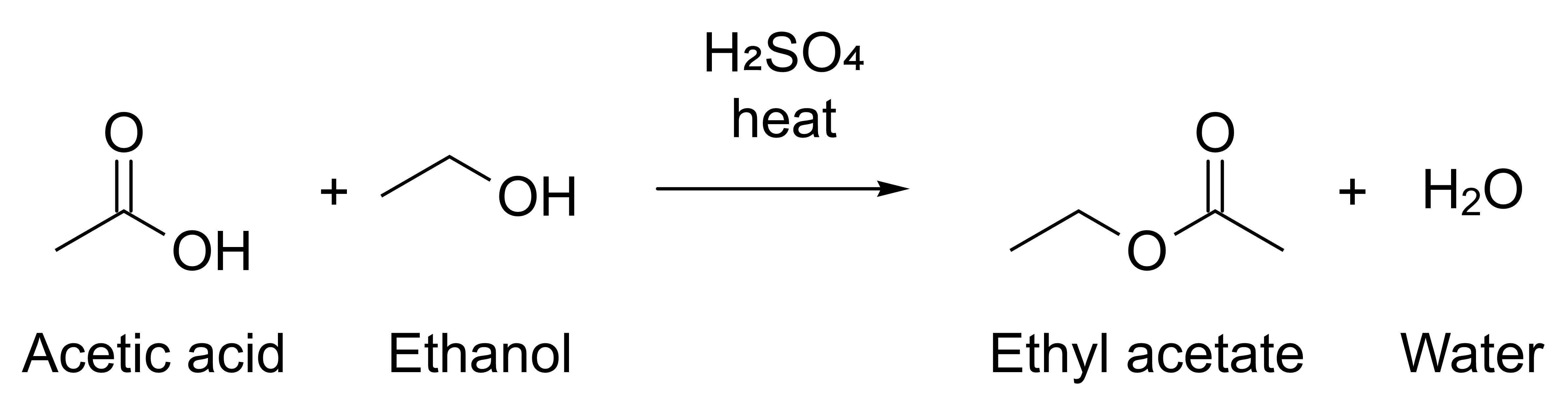
Open the .rsk file in ReShiki to continue editing.
5. Install the ReShiki skill (optional)
Section titled “5. Install the ReShiki skill (optional)”A skill teaches your agent ReShiki’s command line, the compose, render and revise workflow, and the Proposal format. Write it into your agent’s skills folder, which must exist:
mkdir -p ~/.claude/skills/Applications/ReShiki.app/Contents/MacOS/reshiki --cli skill -o ~/.claude/skillsFor Codex, use ~/.agents/skills. Read the files before you install a skill. Agent skill covers Windows, claude.ai and updates.
Use the command line
Section titled “Use the command line”reshiki --cli runs one command and exits. It reads and writes the paths you give it with your own permissions; folder grants do not apply. An existing output file is replaced only with --force.
reshiki --cli convert --smiles 'CCO' -o ethanol.molreshiki --cli convert scheme.rsk -o figure.pdfreshiki --cli render scheme.rsk -o preview.pngreshiki --cli analyze --smiles 'c1ccccc1O'reshiki --cli compose proposal.json -o scheme.svgreshiki --cli help convertUse the full executable path from step 1 in place of reshiki. On Windows, pipe or redirect the output, as in | Write-Output or > info.json; without that, a release build’s output and error messages do not appear. MCP clients are unaffected.
compose lays out a Proposal: the JSON layout plan ReShiki’s assistant uses, with molecules and reactions from SMILES. Start from the example Proposal; reshiki --cli schema proposal prints its schema. The command-line reference lists every command, option and exit code.
Exit codes
Section titled “Exit codes”When the server stops, the client reports that it failed or closed. Its exit code tells you why:
| Exit | Cause | What to do |
|---|---|---|
| 0 | The client closed the connection, and every request was answered | Nothing |
| 1 | The client stopped reading or closed the connection early, or the server could not start | Restart the client |
| 2 | A usage error, a folder that cannot be granted, an invalid agent-access.json or an invalid RESHIKI_AGENT_HEAP_MB |
Check the server by hand; it prints the cause |
| 75 | The memory ceiling was reached | Raise RESHIKI_AGENT_HEAP_MB in the client’s settings, or ask for a smaller task |
RESHIKI_AGENT_HEAP_MB is the memory ceiling in MiB: 256 to 16384, default 2048. Set it in the client’s settings for the server, then restart the client:
-
Claude Code: remove the server and add it again with
--env. Keep another option, such as--transport stdio, between--envand the server name.Terminal window claude mcp remove reshiki --scope userclaude mcp add --env RESHIKI_AGENT_HEAP_MB=4096 --transport stdio --scope user reshiki -- /Applications/ReShiki.app/Contents/MacOS/reshiki --mcp --allow-write /Users/you/ReShiki-Agent -
Claude Desktop: add
"env": { "RESHIKI_AGENT_HEAP_MB": "4096" }next tocommandandargs. -
Codex: add a
[mcp_servers.reshiki.env]table withRESHIKI_AGENT_HEAP_MB = "4096".
Troubleshooting
Section titled “Troubleshooting”| Problem | What to do |
|---|---|
| The server does not start on macOS | Open ReShiki once from Finder after downloading it, and keep it in /Applications, so macOS does not block a client from starting it. |
| Files in Documents or Desktop are refused | macOS checks the client app’s privacy permissions, not ReShiki’s. Allow the client in System Settings → Privacy & Security, or grant a folder outside Documents, Desktop and iCloud Drive. |
| The server fails to start | Check the server by hand, and look up its exit code. |
path_not_granted |
The file is outside the granted folders. Add the folder to the client’s configuration, then restart the client. |
| Codex reports a timeout | Set tool_timeout_sec = 120 and startup_timeout_sec = 20 for ReShiki. |
| Claude Code cuts off a result | Raise MAX_MCP_OUTPUT_TOKENS, or ask for a smaller render or part of the drawing. |
| Updating ReShiki on Windows | Quit MCP clients first, so no reshiki.exe --mcp is running while the installer replaces ReShiki. |
| The agent still sees the old version | Restart the client after any ReShiki update, so it starts the new executable. If you installed the skill, write it again. |
Check the server by hand
Section titled “Check the server by hand”Run the client’s command in a terminal with --log-level debug and empty input. The server prints its version and granted folders, or one line naming the folder it cannot grant, and exits.
On macOS and Linux:
/Applications/ReShiki.app/Contents/MacOS/reshiki --mcp --log-level debug --allow-write /Users/you/ReShiki-Agent < /dev/nullOn Windows, a release build shows no output in a terminal, so write it to a file. In Command Prompt (in PowerShell, type cmd first):
cmd /c ""C:\Users\you\AppData\Local\Programs\ReShiki\reshiki.exe" --mcp --log-level debug --allow-write "C:\Users\you\ReShiki-Agent" < NUL 2> reshiki-mcp.txt"echo %ERRORLEVEL%type reshiki-mcp.txtecho %ERRORLEVEL% shows the exit code, and type shows the server’s messages.
For AI agents and LLMs
Section titled “For AI agents and LLMs”The documentation is also published as plain text for language models:
- /llms.txt: an index of the documentation.
- /_llms-txt/agent-api.txt: the agent pages in one file. It holds this guide, the API overview, the command-line reference, the tool reference, the skill page and runtime safety.
- /llms-full.txt: all documentation in one file. /llms-small.txt is a shorter version.
Privacy
Section titled “Privacy”The agent API runs only when you or a client you configured start it. It opens no network connection: no update checks, downloads or telemetry. Your MCP client, and the model service it uses, receive what the tools return, including structures, rendered images and text from the drawings the agent works on, and the client’s own privacy terms apply. ReShiki cannot see drawings open in the app, and files are read and written only in the folders you grant. The command line uses your own permissions. Read the privacy policy for details, and runtime safety for limits and remaining risks.