Use chemical names
ReShiki reads and generates chemical names on your computer. No internet connection is needed.
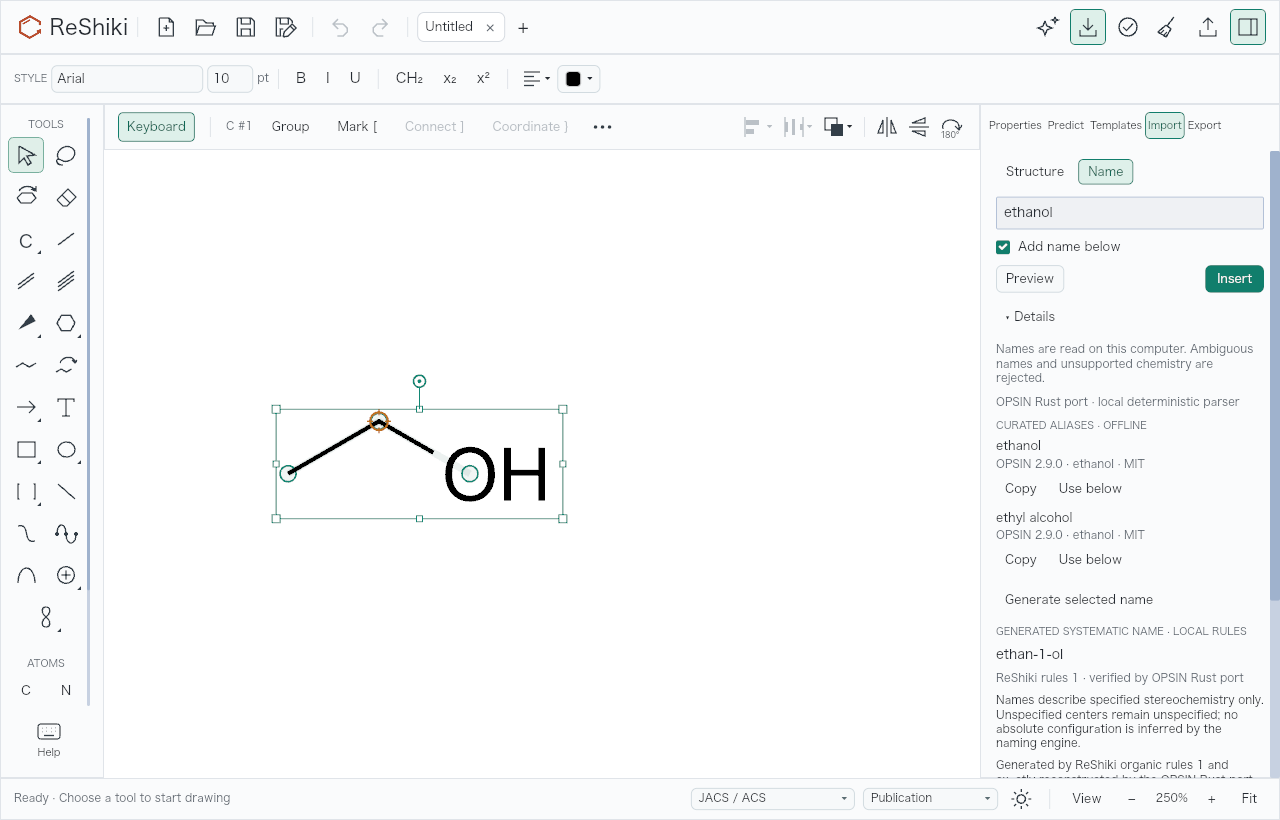
Insert a structure from a name
Section titled “Insert a structure from a name”- Open Import and choose Name.
- Type a name such as
ethanol. - Choose Insert, or press Enter.
The structure appears beside your drawing and stays selected. Add name below is on at first and adds the name as a caption under the structure. Turn it off to insert only the structure. Undo removes the structure and its caption in one step.
Preview is optional. It shows the structure before you insert it. Drag atoms to arrange the layout, or edit the SMILES and choose Apply. Reset returns to the parsed structure. If you change the chemistry, the name no longer matches, so ReShiki inserts the structure without it.
Find other names for the structure
Section titled “Find other names for the structure”Choose ▸ Details to read the name without inserting it. If Details is already open, choose Resolve name.
CURATED ALIASES · OFFLINE lists other names from a small catalog that ships with ReShiki, each with its source and license. For ethanol it also shows ethyl alcohol.
- Copy copies one name.
- Use below makes that name the caption of the next insertion. The panel then shows, for example, Name below: ethyl alcohol.
- Use original name below switches back to the name you typed. Typing a new name also clears the choice.
Aliases are not offered after you edit the structure in the preview.
Label a molecule with its name
Section titled “Label a molecule with its name”Right-click a molecule and choose Show chemical name. ReShiki places the systematic name centered below the molecule; for ethanol it is ethan-1-ol. Hide chemical name in the same menu removes it. Each is one Undo step.
The caption moves with the molecule. If you change the molecule’s chemistry, ReShiki removes the caption in the same Undo step. Editing or dragging the caption turns it into ordinary text that stays.
To copy a name without placing it, select one whole molecule. In Import → Name → ▸ Details, choose Generate selected name. GENERATED SYSTEMATIC NAME · LOCAL RULES shows the name with Copy name and Insert caption. Catalog aliases for the molecule appear below it, each with Copy and Insert caption. An alias caption replaces the molecule’s name caption instead of adding a second one. Undo removes an inserted caption in one step.
Open the Chemical names inspector
Section titled “Open the Chemical names inspector”Right-click a molecule and choose Chemical names…. ReShiki selects the molecule and opens the Chemical names inspector, which holds both directions:
- NAME → STRUCTURE: type a name and choose Parse name. Drag atoms in the preview, or edit its SMILES and choose Update. Restore returns to the parsed structure. If the result has warnings, check I reviewed these warnings and the structure. Insert adds the structure without a caption.
- STRUCTURE → NAME: choose Generate selected name, then Copy name or Insert caption.
‹ Properties returns to the Properties inspector.
What is supported
Section titled “What is supported”- ReShiki rejects an ambiguous name with a reason. It also rejects names with unsupported stereo, relative or racemic descriptors, radicals, polymers, queries and disconnected salts. A rejected name leaves the drawing unchanged.
- Optical rotation signs are not turned into R or S. The one exception is
(+)-lactic acid, which reads as (S)-lactic acid,(2S)-2-hydroxypropanoic acid. - Generated names cover neutral organic molecules of C, N, O and halogens with up to 64 heavy atoms and at most one ring. Charged and isotope-labeled molecules give an error.
- Generated names are systematic. They are not always the preferred IUPAC name.
- The alias catalog holds 40 names for 30 molecules. It matches the exact structure, so stereo, charge and isotopes count:
(+)-lactic acidis listed only for (S)-lactic acid. No curated aliases available in the bundled catalog. means only that the catalog has no entry. - Only
.rskfiles keep the link between a caption and its molecule. Figures and CDXML/CDX files keep the caption as text.