Build a reaction scheme
Put the reaction on the page
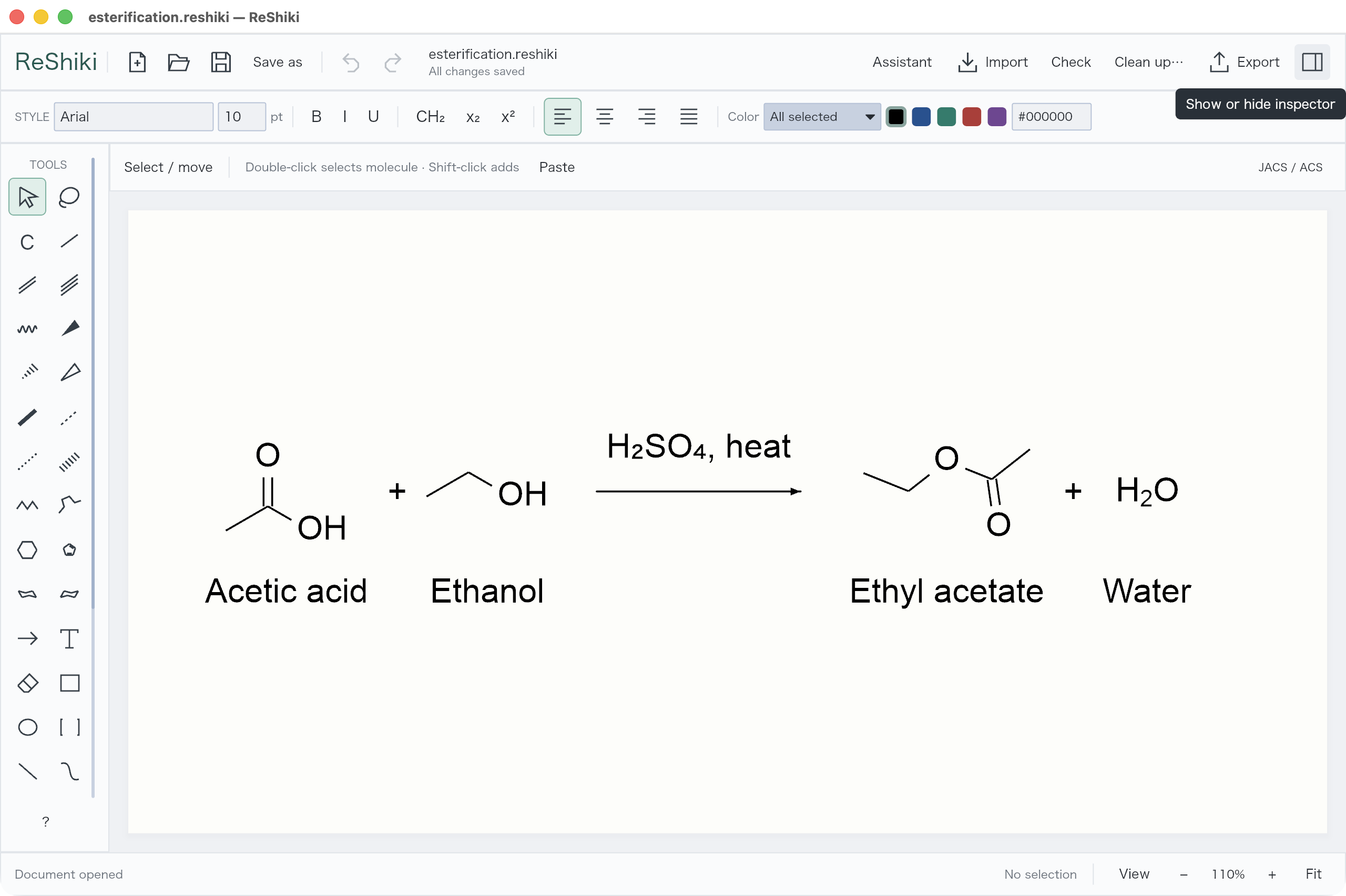
Section titled “Put the reaction on the page”- Draw or import the molecules. Put reactants on the left and products on the right.
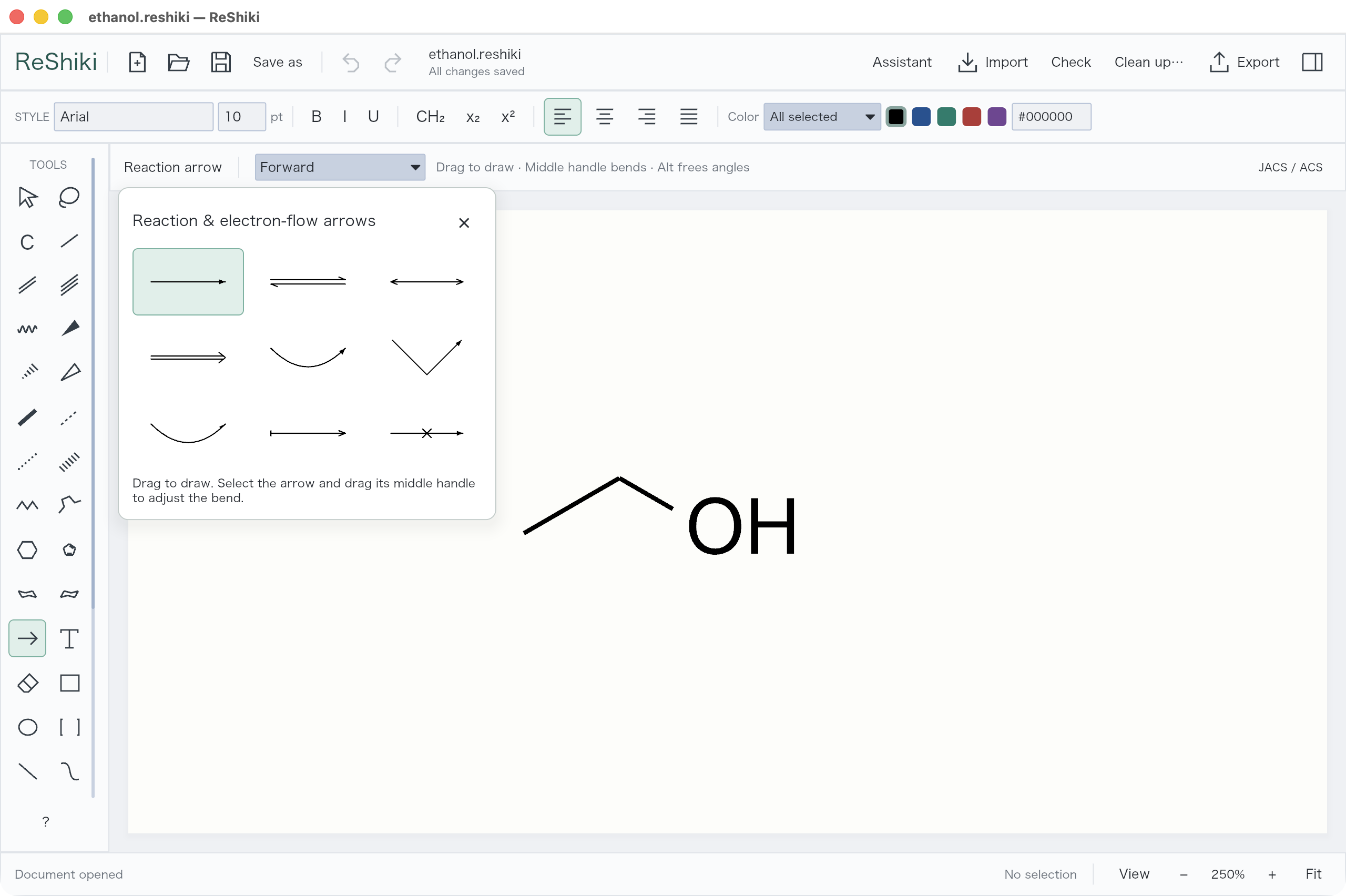
- Choose the arrow tool and drag between them.
- Choose Text (T) and add conditions above the arrow.
- Select related objects and use Properties to align them.
Bend an arrow
Section titled “Bend an arrow”Choose Curved / electron pair, Single electron, or Bent / elbow from the arrow palette.
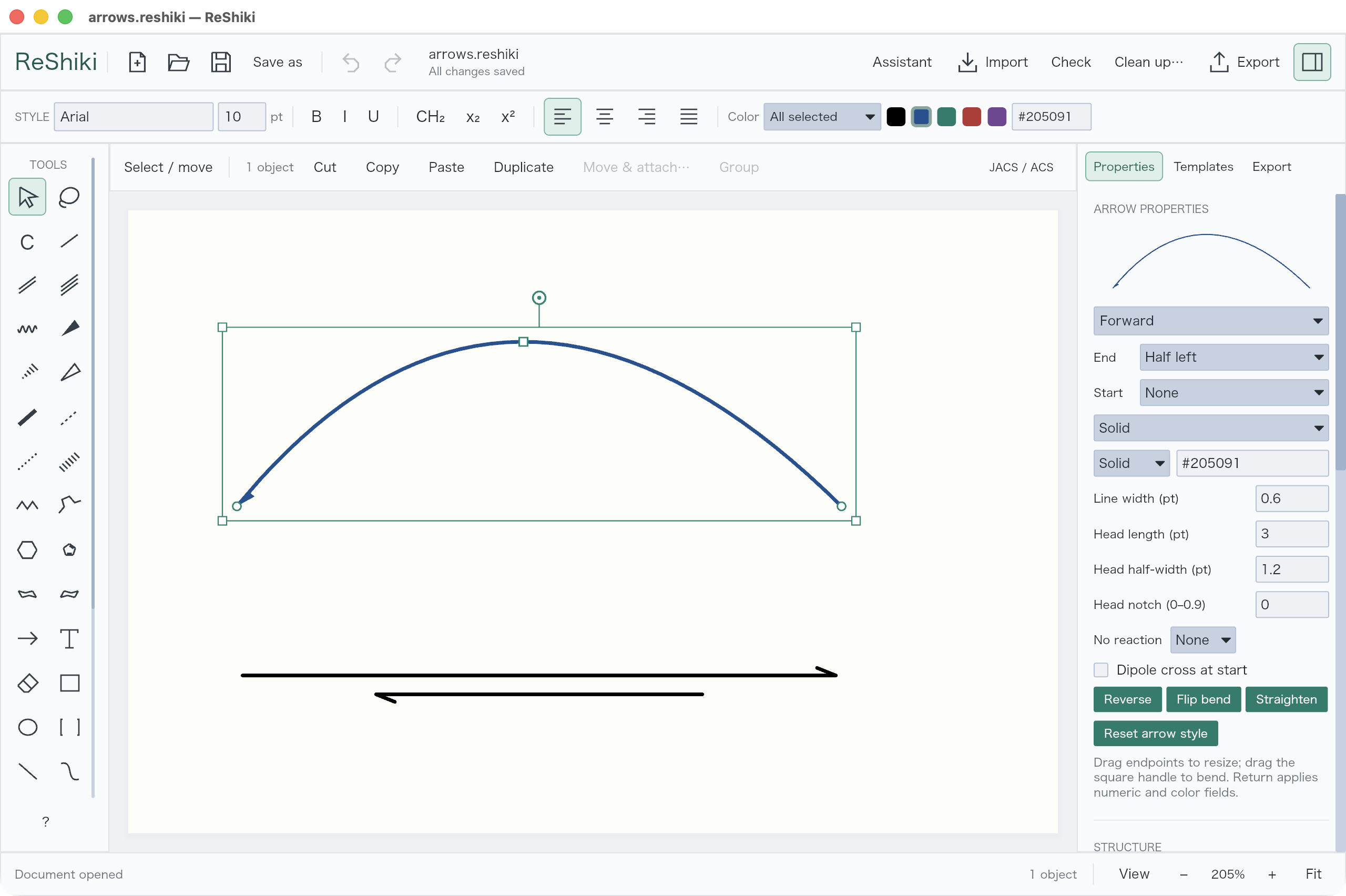
Select the arrow. Drag its middle handle to set the bend or corner; drag an endpoint to change its length. Properties provides Reverse, Flip bend, Straighten, and arrowhead/stroke settings.
Make the reaction exportable
Section titled “Make the reaction exportable”The drawing can also carry explicit reactant, product, and reagent roles:
- Select an arrow and open Properties → Reaction roles….
- Select a molecule, then + Assign selected molecules under its role.
- Repeat for the remaining molecules.
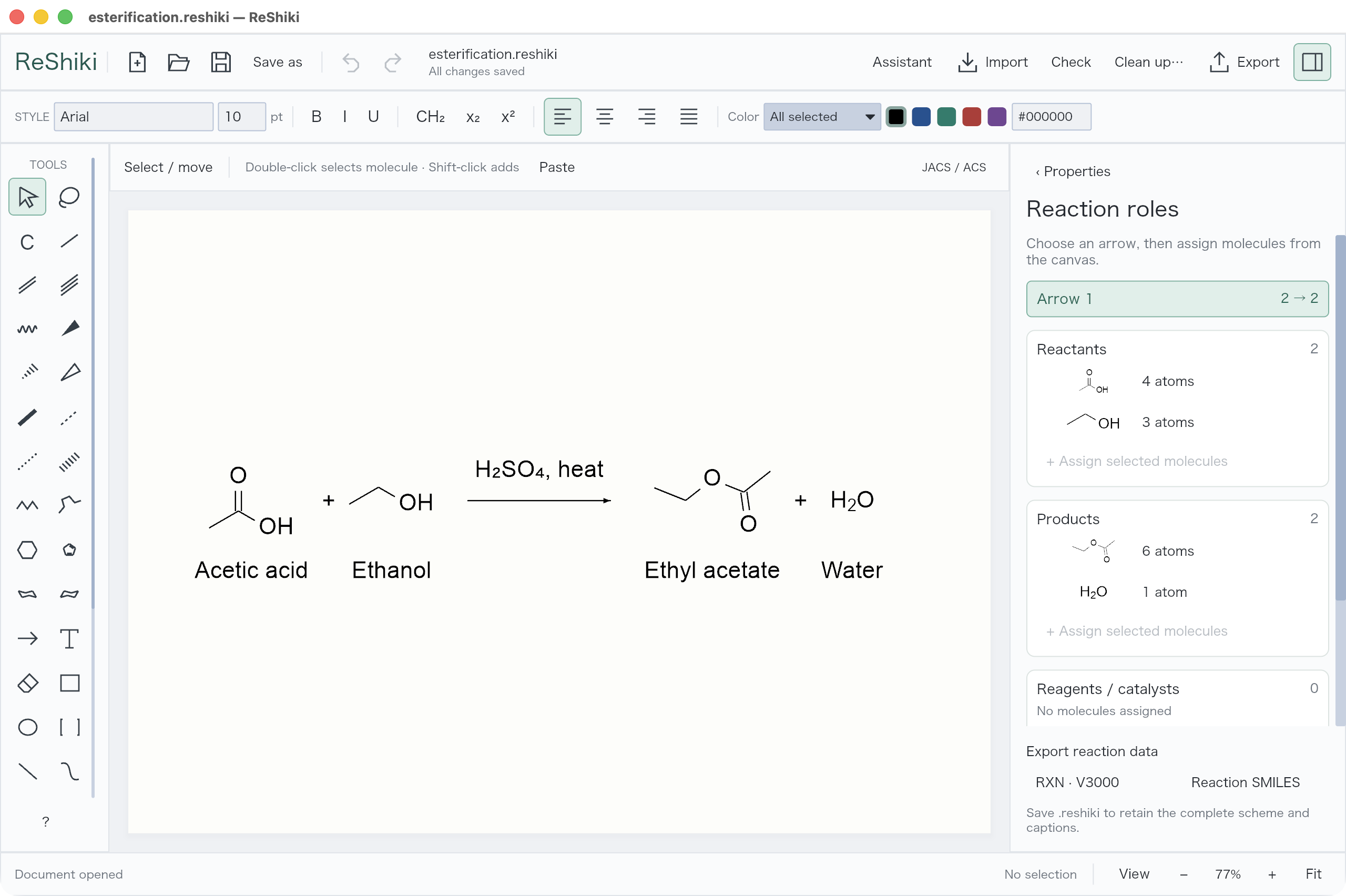
Use RXN or Reaction SMILES to export the chemical reaction. Captions and page layout belong in .reshiki, SVG, PDF, or PNG instead.
Use Open for an RXN file. Use Import to paste RXN text or reaction SMILES. Reaction roles do not check reaction balance or predict products.