Rear opacity
Implementation notes and historical checks. Open the visual guide →.
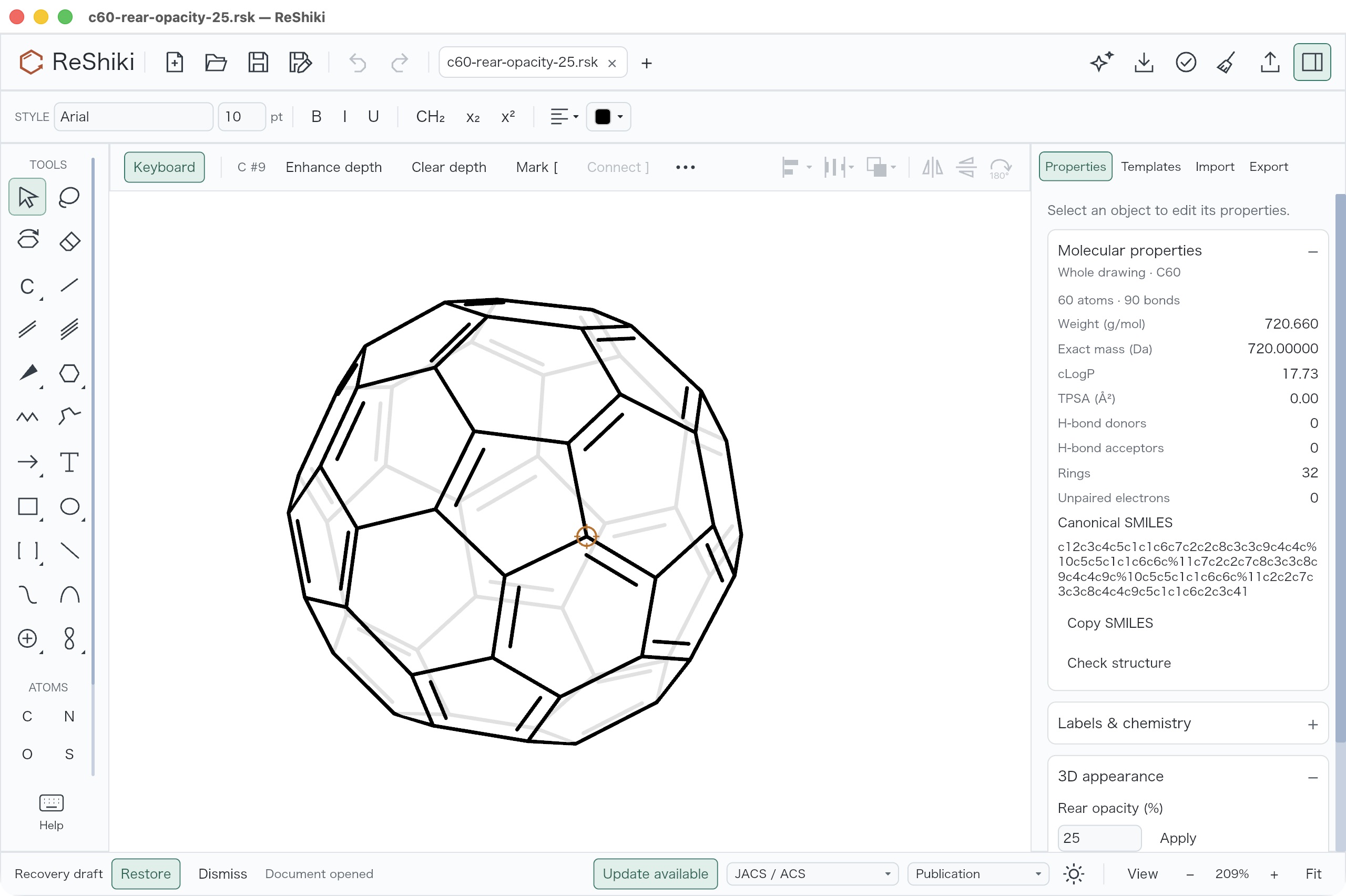
Rear opacity makes the bonds behind the front face of a 3D molecule lighter, while the outline you can see stays solid. It changes only the drawing’s appearance, not the molecule.
Use it
Section titled “Use it”- Open a drawing with 3D coordinates, for example C60 or a MOL file with 3D coordinates. Select part of a molecule to change that molecule, or clear the selection to change every molecule in the drawing.
- Open Properties → 3D appearance.
- Type a percentage from 0 to 100 in Rear opacity and choose Apply, or press Enter.
100% is the default and keeps the drawing opaque. 25% leaves the rear bonds faint, and 0% hides them. Undo restores the previous setting. Tilting the molecule later keeps the setting.
Limits
Section titled “Limits”- 3D appearance appears only for molecules with depth. Flat 2D molecules look the same at any setting.
- A
.rskfile keeps the setting. SVG, PNG and PDF keep the look. - MOL, SMILES and InChI report that they do not keep rear opacity. CDXML and
CDX cannot keep it either; set rear opacity to 100% first, or use a
.rskfile or a figure format. - EMF for Office accepts only 0% or 100% and suggests SVG, PDF or PNG otherwise.
Implementation notes
Section titled “Implementation notes”Rear opacity applies to view-occluded cage surfaces, so the exposed rim stays solid at every setting and after 3D tilt. The target is the complete covalent molecule of the selection, or every molecule when nothing is selected. Opacity works against both light and dark backgrounds and in transparent figure exports; at 0% the background shows through. Molecular identity and the retained XYZ coordinates stay unchanged; tilt rotates the retained XYZ. The visibility correction record describes the corrected cage visibility, desktop checks and limits.